Now that Netflix has aired, the questions and media requests are flowing in. Here are the ones I hear most:
1. Why did we get this case? 2. Did we find his motive? 3. Will we be called back again if he gets a trial? 4. Did Netflix pay us, and how much did we make on the case over 1.5 years?
Let me start with the easy ones. Netflix did not pay us, nor did the families or the state of Idaho. We worked the case for free. “We” includes me, my husband Jared, and our companies, SANS and Cellebrite. Sometimes it’s important to offer help on investigations where digital evidence matters. That’s what we did with Idaho, and it’s why building a village of people around you matters. We should be doing digital forensics for the right reasons: to uncover the truth.
Why did we get this case?
I will never forget the call I got in March 2023, asking if I could come to the FBI RCFL in Philly to look at some evidence that seemed “off.” They didn’t understand why the tools weren’t showing them much user activity. Where was it? Was it the right device and computer? And was I available? Yes. If you know me, I say yes to far too many things. I’m grateful I said yes to Mike A. and Jeff T. that day.
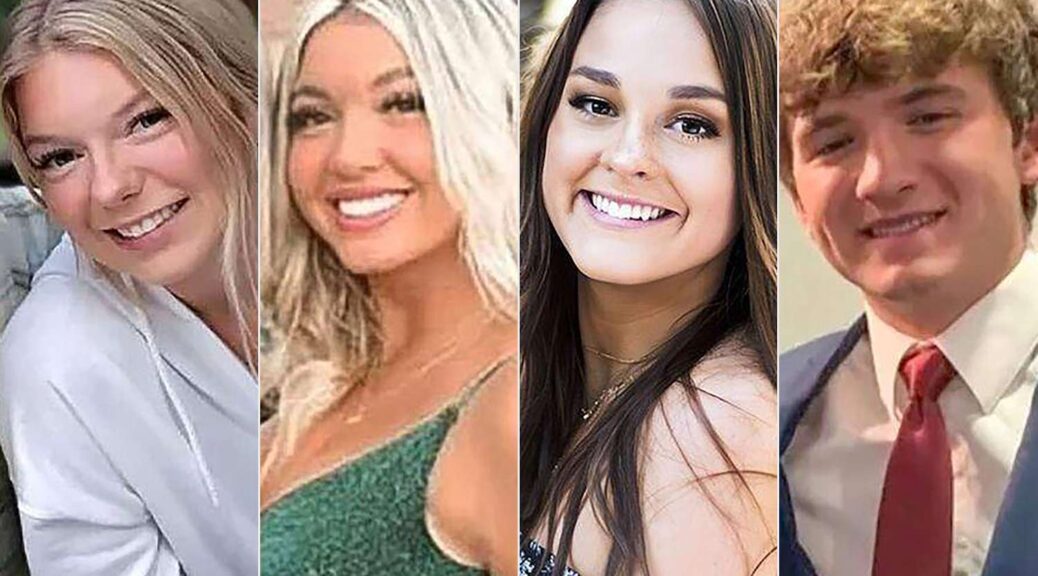
You may be asking again, why me? A decade before the Idaho murders of Kaylee, Maddie, Ethan, and Xana, a few people from the FBI RCFL took my SANS FOR585 Smartphone Forensic Analysis course, taught by me and Lee Crognale, in Dallas. I exchanged information with them that day, visited their office for SANS and my day job at ManTech, and built real professional friendships over the years. That’s how you start building your village. Mike A. knew he could call me because I wrote the course on smartphones. I remember him saying something like, “if you can’t find it, maybe it’s not there.”
They also had a PC belonging to Bryan Kohberger (I’ll refer to him as BK going forward). The FBI had already found most of what you’ve heard about in the news: the browser searches before his arrest, the VPN activity, the selfies, the fascination with serial killers. They referenced both our FOR500 and FOR585 books and did their due diligence, but they couldn’t tie any of it to the victims or a motive. That’s why they called me.
Jared was driving up to see me and said he’d help if I wanted him to. I said yes, and the FBI agreed. Two experts for the price of zero is hard to turn away. Cellebrite was fantastic about supporting us on hours while we worked the case. We immediately signed a gag order stating we couldn’t discuss the case with the media or anyone outside the investigation. This made it hard to lean on other trusted examiners like Josh Hickman, Mattia Epifani, and Ovie Carroll, since we couldn’t tell them what we were actually working on.
Not to give BK any credit, because anyone can Google how to clear their digital forensic footprint, but this case was tricky. When the data doesn’t clearly paint the story through conversations, locations, and app usage, our job gets a lot harder. The core foundation of FOR585 is Locard’s Principle: every contact leaves a trace. That includes digital cleanup. It’s just harder to find because most tools don’t parse it. The logs track everything. We just had to find them.
Unlucky for BK, my Cellebrite Capture The Flag (CTF) device using the alias, Sharon O’Neil, was the exact model, Android OS version, and carrier (AT&T) as his phone. That meant I could attempt to recreate the logs Jared and I were examining, and I did. This is what matters: going beyond what the tools show you on the surface. It’s why the RCFL called me. They know how my brain works, and they knew I’d put in every effort to piece together what happened on BK’s phone and PC the day the four students were murdered in Idaho. Jared and I did that with the FBI.
We were able to link his PC to the phone through Google Chrome sync. Most of the browsing activity was done in Incognito mode until after BK returned to Pennsylvania with his father. He seemed to let his guard down after that. Netflix covered this, as did 20/20 and other outlets. Where he made mistakes that helped us: downloads from Incognito browsing were cleared from his PC but not from his Android device. We found those. Cache files persisted. And the logs showed his phone was at 100% battery when he manually powered it down in the early morning hours before the murders. We could pinpoint when WiFi was disabled, when the phone was manually shut down, and when it was powered back on. The FBI handled all of the cell tower logs and tower location data. Jared and I didn’t touch that side. We focused on what existed on the phone and laptop themselves with guidance from the investigative team. Everyone had their role. We all stayed in our lanes.
Motive
We never found BK’s motive in plain text on his phone or laptop. That still haunts me. I was hoping to give the victims’ families real answers. Why their kids? Why that house? Why that night? Jared was a huge source of support for me through this case. I tell him often that I love working with him, and that I’m grateful he understands the weight we carry mentally on cases like this. I can’t imagine getting through the trial prep and stress of this case without him beside me. He’s a key pillar in my village.
While we didn’t find the motive, we did find intentional deletion and masking of a digital footprint. The laptop was missing an entire month of user activity leading up to the murders. The phone had gaps from a few days before to a few days after, aside from searching news about the murders and contacting his parents.
When your alibi is that you were out stargazing and taking photos, your phone needs to be on. When your phone is at 100% charge, you can’t claim the battery died and that’s why it was off. You can’t say you were asleep when you were wide awake and driving from your apartment after 2 a.m., headed toward Moscow. You can’t say you were off stargazing when you suddenly power your phone back on after 4:40 a.m., after your car was caught on camera fleeing the victims’ home, and you take the long way back to your apartment. BK was awake. He was trying to erase his digital footprint. And he failed.
Validation is everything
Some call it verification, some call it validation. For us, it was both. If one tool showed something, what did another tool show? If a log showed something, how was it created? We recreated every single log we were prepared to testify to. We were ready to explain, in detail, what those logs meant and how they came to exist. We were ready. Then BK pled guilty in July 2025. Yes, almost a year and a half after we joined the case.
When BK took the plea, I thought our job was done. I had no idea the media frenzy that was about to follow. I didn’t expect the “pro-Berger” crowd to come after us, and I didn’t expect how much the families would feel like answers had been left on the table. Jared and I flew out to Idaho to meet with any of the families who wanted to talk. We sat with the Goncalves family for almost three and a half hours, answering their questions and learning who the victims really were. It was one of the toughest conversations of my life. Steve, Kristi, Alivea and their entire family are lovely people. I cherish the relationship we’ve built with them, and I think about them every day as they face life without Kaylee.
Jared and I stayed in touch with them throughout the media frenzy, careful never to reopen wounds. They asked us to honor the kids murdered that morning of November 13th, and we did, and still do, every chance we get.
The July 2026 appeal to remove the guilty plea
I’ve been asked to appear on the news about BK’s appeal, and I’ve turned it down. What else is there to say? I promised myself I’d do media only if it would educate other DFIR practitioners, parents sending their kids off to school, teens learning about online safety, or add real value to the case. Every time an opportunity comes up, I ask myself one question: is this helping SANS, Cellebrite, the families, or the DFIR community? If the answer is no, I pass. Someone else will take it.
This case was mentally exhausting, and I’m ready to let BK fade and let the memory of Kaylee, Maddie, Ethan, and Xana be what prevails. The courts will decide what happens with the appeal, not much I can do. I hope the case is as airtight, and that justice was served. Would I testify to my own work? One hundred percent. Data is data, and the absence of it can be the loudest signal of intent there is. Sit with that for a second: why was the data deleted? When was it deleted? And why did a suspect go to such lengths to keep digital evidence off his device in the first place?
What’s next
I’m retiring. Kidding. Everything I learned from this case now lives in my SANS courses that I co-author with other brilliant examiners. We walk through every log and every methodology we used on his Android in FOR585. Josh Hickman and I purposely write CTF questions for Cellebrite focusing on key details like battery percentage, how devices, were powered down, when data was cleared. In FOR500 Windows Forensic Analysis, we break down how his deletions and abnormal behavior on the PC can be detected.
I am going to keynote the DFIR Summit in Arlington, VA Oct 15-16th and will be diving into this case. Join me and other experts for two days of research, case sharing, and amazing hands-on experiences. https://go.sans.org/y3DazG
Remember: every contact leaves a trace, and a digital forensics expert will find it.
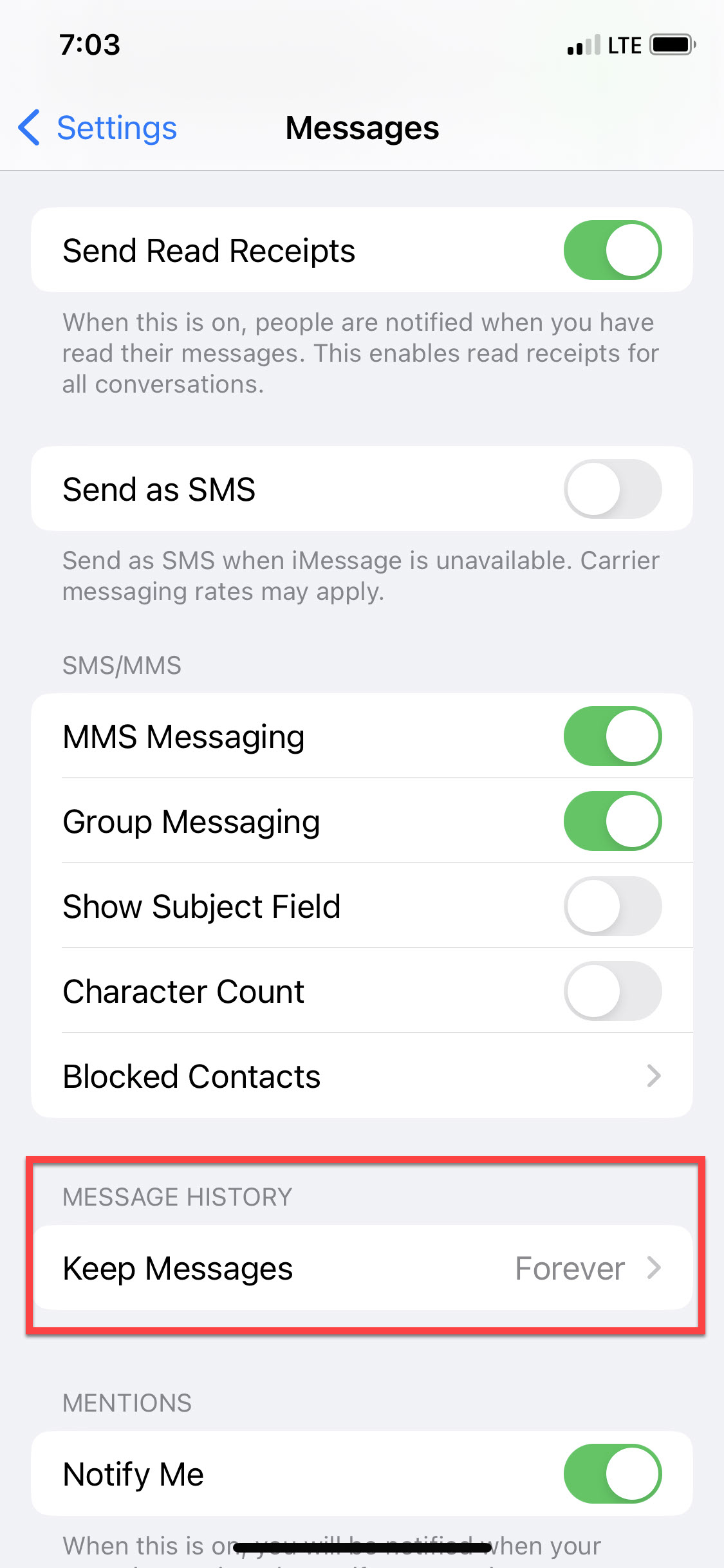
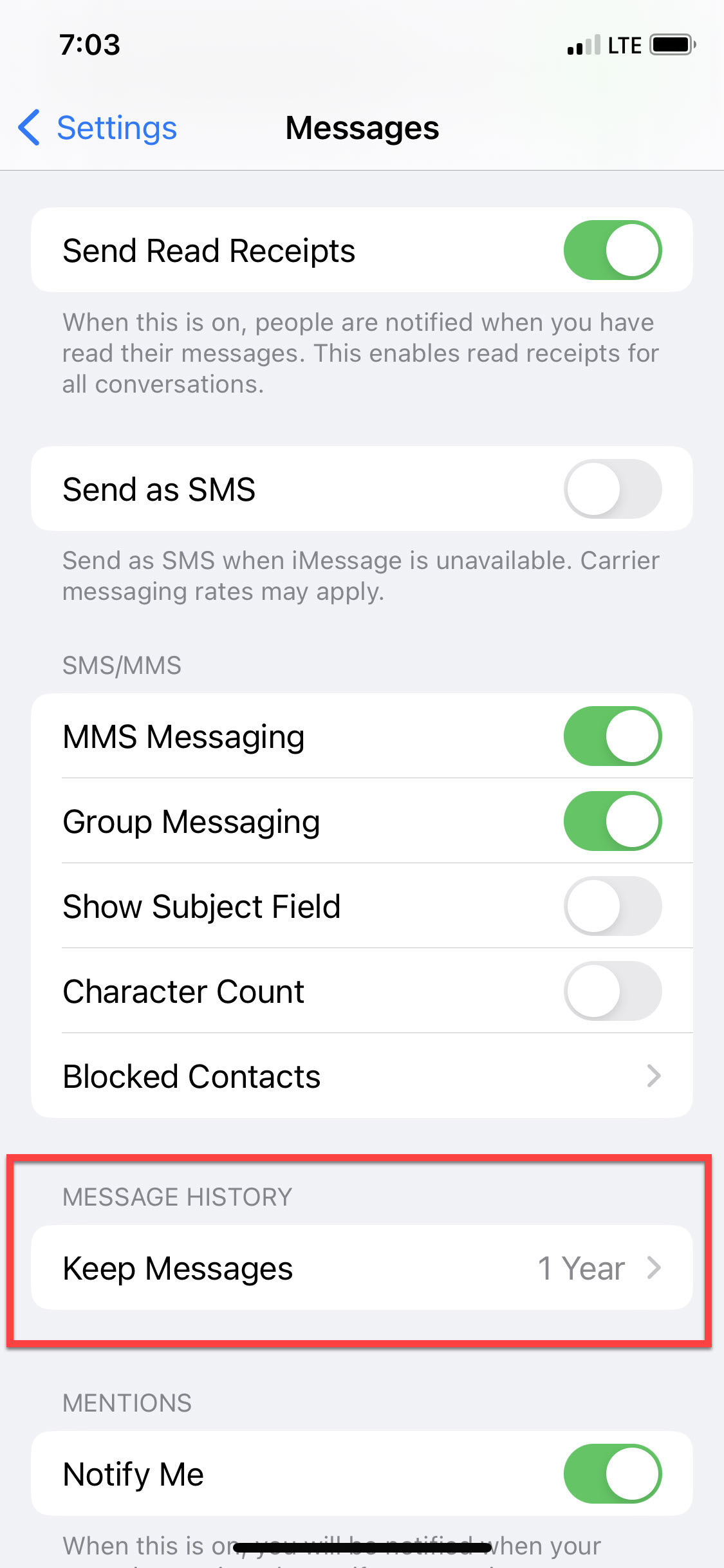
When I teach SANS FOR585 Smartphone Forensic Analysis In-Depth, we really dive into iOS artifacts to validate the truth of what happened, what tools are reporting, and what they are missing. Message retention is often needed to help examiners understand why data no longer exists on the iOS device if the user didn’t delete it. When hunting for deleted messages, I suggest students validate the current message retention settings in com.apple.MobileSMS.plist, then examine the messages that are parsed in the tools and compare that to the message table of sms.db. If message retention is set to 30 days and you are looking for older messages, chances are good they no longer exist on the device. If this isn’t the case and message retention is set to forever, get ready to dig and hope for the best because your job just got harder. Bottom line, understanding the values in com.apple.MobileSMS.plist when it comes to message retention can be a time saver.
Apple always likes to change things up and it’s impossible to see everything that has changed right away, even with all the amazing DFIR researchers out there. Sometimes it takes a customer to email with a question on how the tool is behaving. This is why I decided to write this blog. I want to thank that customer and anyone reading this for validating! This is key to our craft in DFIR. I also want to thank Ian Whiffin for hearing me out and sharing screenshots from test devices.
It’s a known fact that I work at Cellebrite with a group of brilliant examiners. Part of our job is helping customers make sense of data. A question came in about message retention and why PA 10 was reporting one thing and the phone showed another. Same day, different question, new bug? Or new method of tracking settings on the device? For this matter, it was a bit of everything. Apple changed the way message retention is tracked in com.apple.MobileSMS.plist. This plist can be located here: /private/var/mobile/Library/Preferences/com.apple.MobileSMS.plist.
The good news is that this file is accessible with an encrypted iTunes backup, advanced logical, and full file system extractions. I didn’t bother testing unencrypted backups because so much data is missed. ALWAYS encrypt the backup.
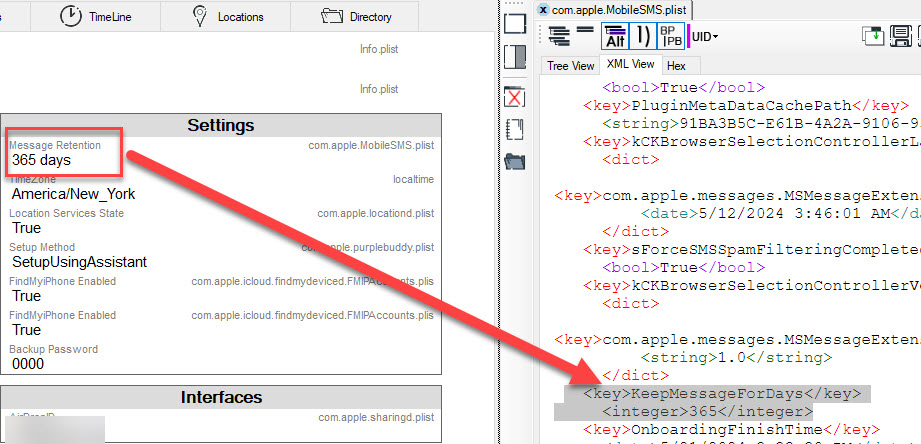
For as long as I can remember, we have been reading the values from the com.apple.MobileSMS.plist under KeepMessageForDays. The values may be:
KeepMessageForDays = 0 = Forever
KeepMessageForDays = 365 = 1 Year
KeepMessageForDays = 30 = 30 Days
**Note – for iOS 13 and earlier if KeepMessageForDays is missing from the plist, the message retention was set to Forever on that device. According to Ian Whiffin, if the default message retention of Forever is neverchanged (regardless of iOS version), the KeepMessageForDays may also be missing from the plist. We plan to validate this further as we will soon have access to devices where that setting has never been modified and will also look for the new values.
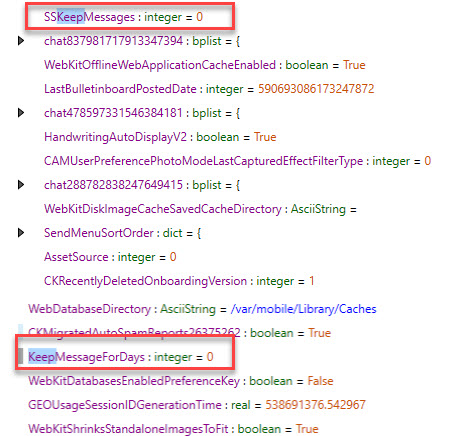
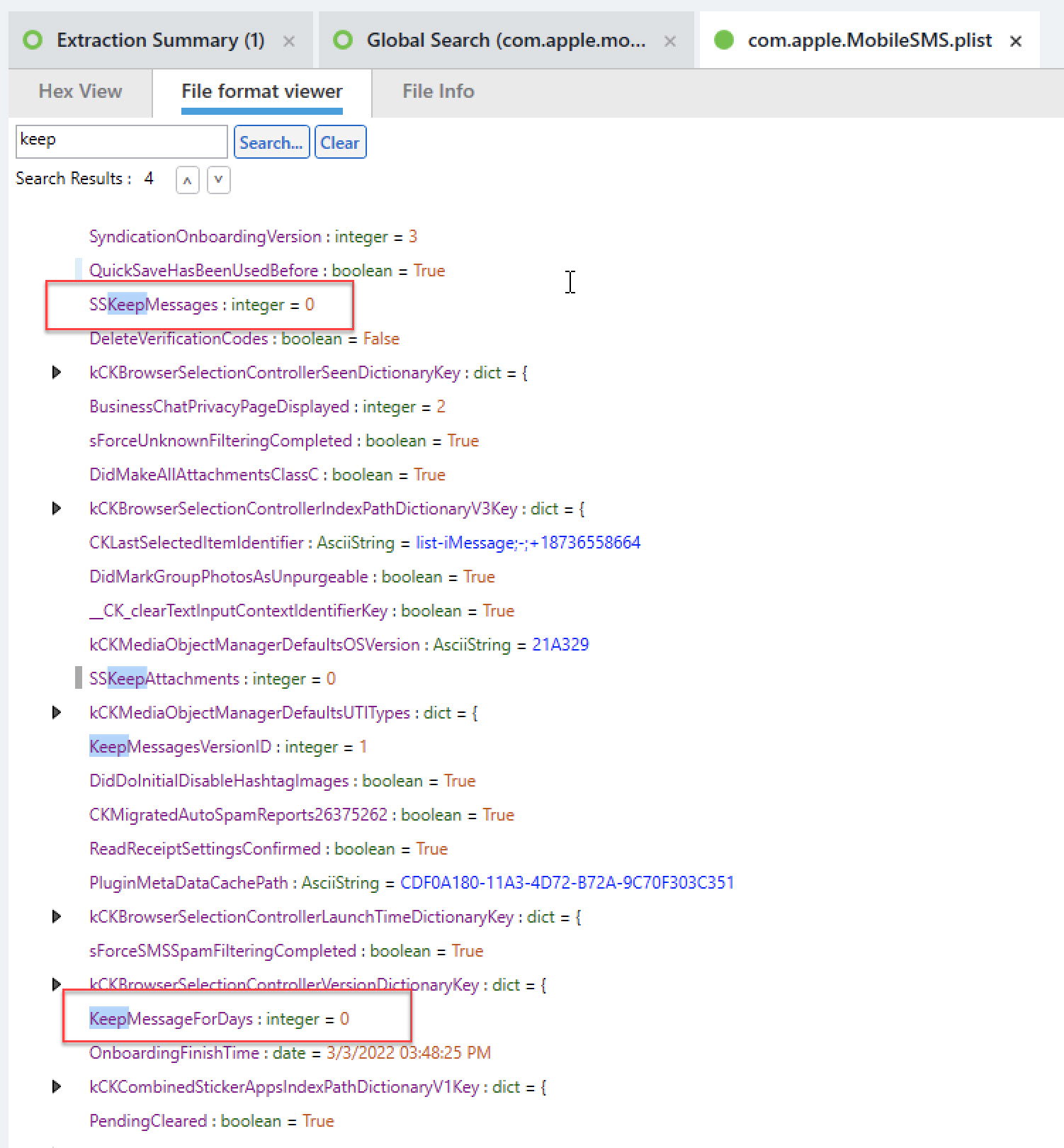
So just when we are comfy with the values in this plist, iOS 17 came along and changed how the values are stored. While the KeepMessageForDays may exist in the com.apple.MobileSMS.plist, it is no longer in use by Apple for tracking message retention in devices that are running iOS 17. The values here seem to reflect old settings of message retention, and not what the device settings currently reflect. Don’t you love when old remnants are left behind that cause confusion?
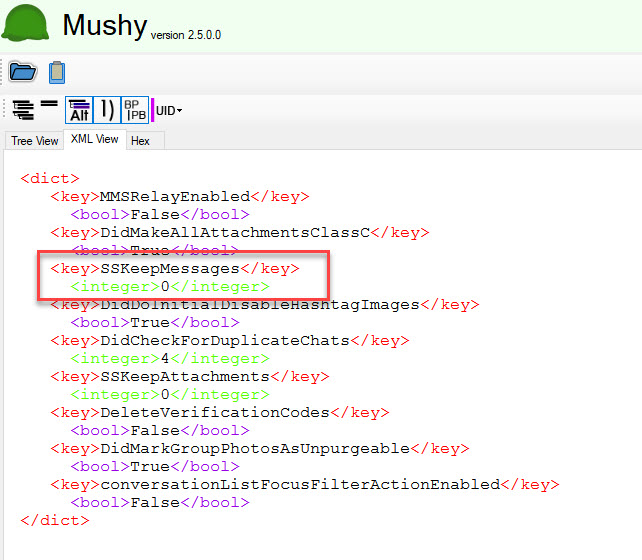
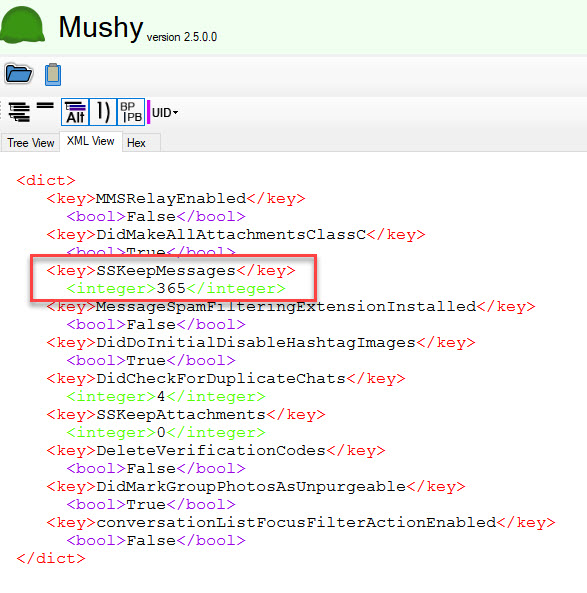
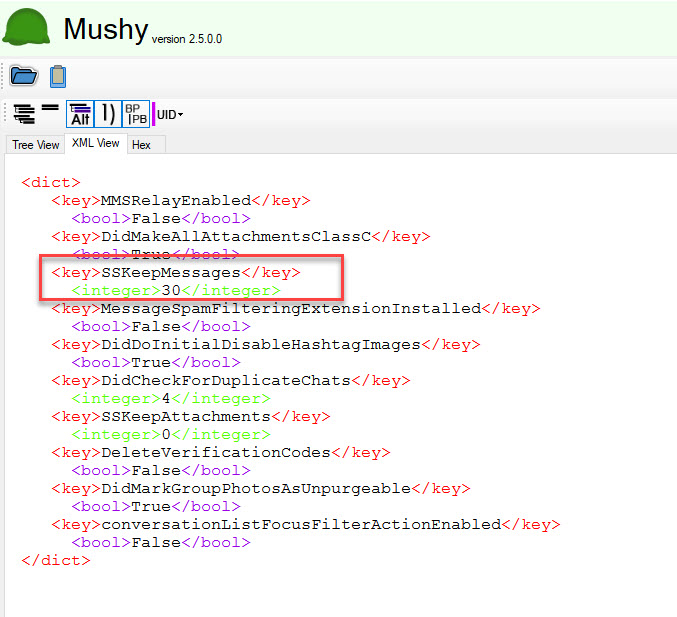
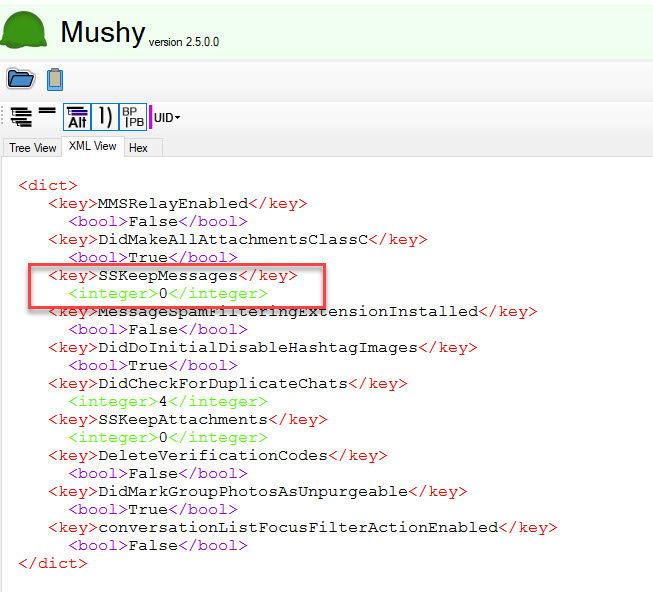
For iOS 17, we need to rely upon the value stored under SSKeepMessages. The values will be the same as before.
SSKeepMessages = 0 = Forever
SSKeepMessages = 365 = 1 Year
SSKeepMessages = 30 = 30 Days
Testing and Validation:
Ian provided me with 4 examples from test devices and I used 3 of my own test devices and my personal phone. Here are some examples you may come across that I think makes the point of the blog.
iPhone 15 Pro running 17.4.1 – Message Retention is set to Forever and was previously set to Forever in iOS 16.
iPhone 10 running iOS 16.* – was set to forever on iOS 16.1.2. Changed it to 1 year and updated to 16.7.10. Here is what the settings looked like.
The device was acquired using iTunes and the encrypted backup was parsed in ArtEx. Note that only the current setting is shown. The modified date of com.apple.MobileSMS.plist reflects when I made the changes, but other factors could impact the timestamp.
Note that SSKeepMessages does not exist. It’s because this is iOS 16 and this key was added in iOS 17.
iPhone 11 running iOS 17.0 – message retention was set to forever and not changed when updated from iOS 16 to iOS 17. This extraction was parsed in Cellebrite Physical Analyzer 10.3.
The following examples are from iOS 17 devices. Note the lack of KeepMessageForDays. I am providing several screenshots to show the different settings as captured by Ian Whiffin.
iOS 17+ – The default setting is Forever. I am examining the com.apple.MobileSMS.plist in Mushy, a free tool developed by Ian Whiffin.
iOS 17+ – Message retention was changed from the default of forever to 1 year. Again, I reviewed this in Mushy.
iOS 17+ -Message retention was changed from the default of forever to 30 days. I reviewed this in Mushy.
iOS 17+ – Message retention was changed from the default of forever to 365 or 30 and then changed back to Forever.
As I have found in many aspects in life – it takes a village. This is also true in DFIR research. It’s better when we work together and ask questions, which can really make a difference. Imagine how many examiners out there can be helped by one person asking a question! Keep asking and stay tuned for more on this topic in the Notebook on the Cellebrite 101. This is the new community we created to host all tech questions, just like this! As always, trust but validate!
I have been meaning to update this blog for years, so here goes. This blog is going to cover what I recommend to get the most data from iOS and Android devices. Many tools exist to successfully extract data from mobile devices and I am sharing some of my favorite methods that have proven to be successful for me over the years.
ANDROID Acquistion
Since most devices are using File Based Encryption (FBE), physical acquisition may not be possible. For devices that can be physically acquired, that should render the most data. The next best option to collect the most data from the phone is Full File System access. HOT devices should be acquired quickly. To explain HOT – If the device is in an AFU (after first unlock) state, make sure you acquire it and ensure the device doesn’t reboot, if possible. A reboot will put the device into a BFU (before first unlock) state and may be difficult or impossible to acquire without the passcode.
Obtain a Physical or Full File System extraction with Cellebrite UFED, Premium or Premium ES. These are my preferred tools, others can be used as well.
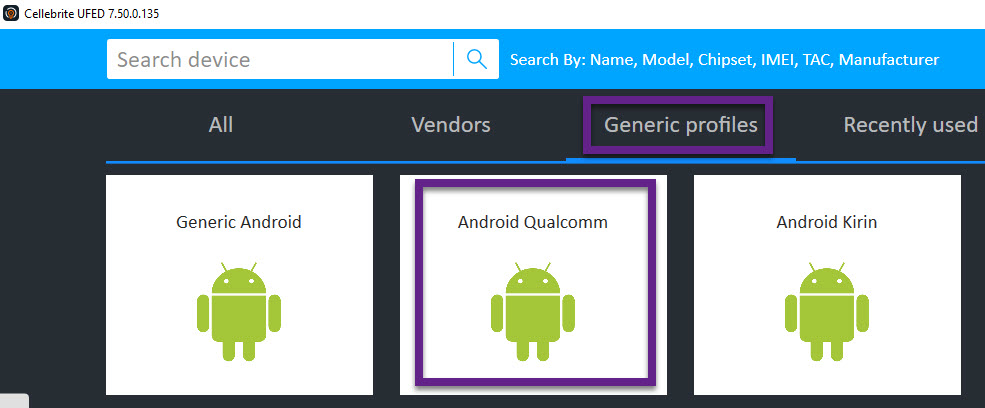
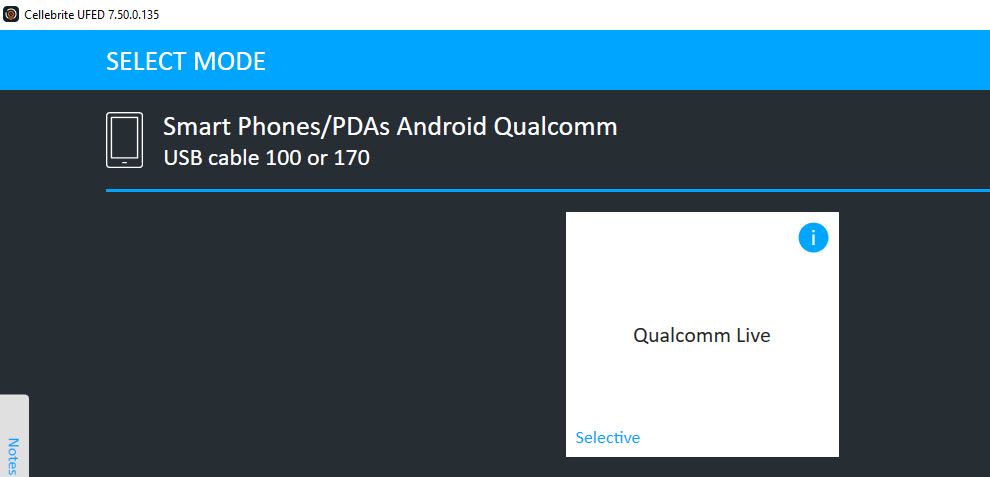
If a Full File System is not possible for a specific model, verify the chipset and try Android Qualcomm/Qualcomm Live under Generic profiles.
Make sure you open the extraction prior to returning the device to ensure the data is not encrypted!
UFED Generic Profiles
Qualcomm Live Android Option
File System Acquisition
This may simply be a backup and backups don’t get a lot with newer Android devices.
Try Generic Android on Cellebrite UFED if you are not finding the specific model to be working.
Logical Acquisition using a forensic tool – especially if ADB isn’t going well for you. I recommend using more than one tool or a single tool and also capturing an ADB backup for validation purposes.
Note that most tools will install a software agent in order to extract data from the device. This is normal and accepted. If you are ever questioned on what the software agent is doing, simply extract the APK and examine it manually to review the permissions.
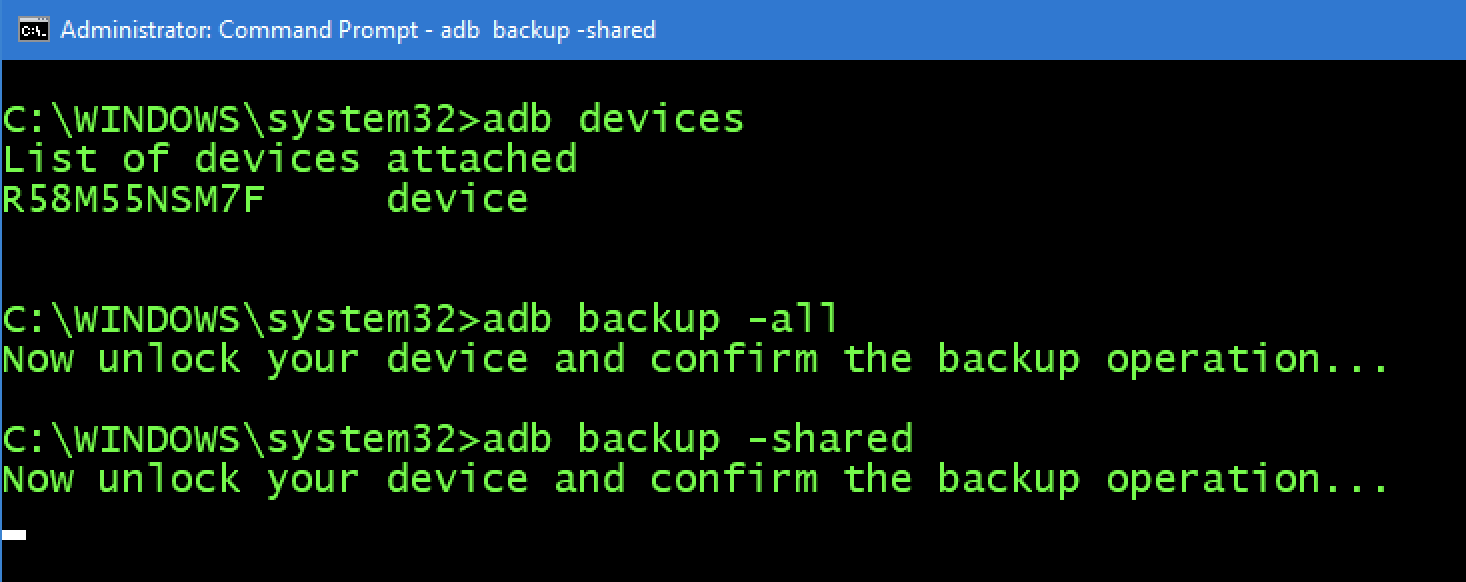
FREE WAY – ADB Backup (capture both the device (all) and SD/media (shared))
adb backup –all
adb backup – shared
Make sure you acquire the SD card and SIM card if one is present.
I like to remove these and acquire separately to ensure nothing is overlooked.
Make sure you write-protect the SD card.
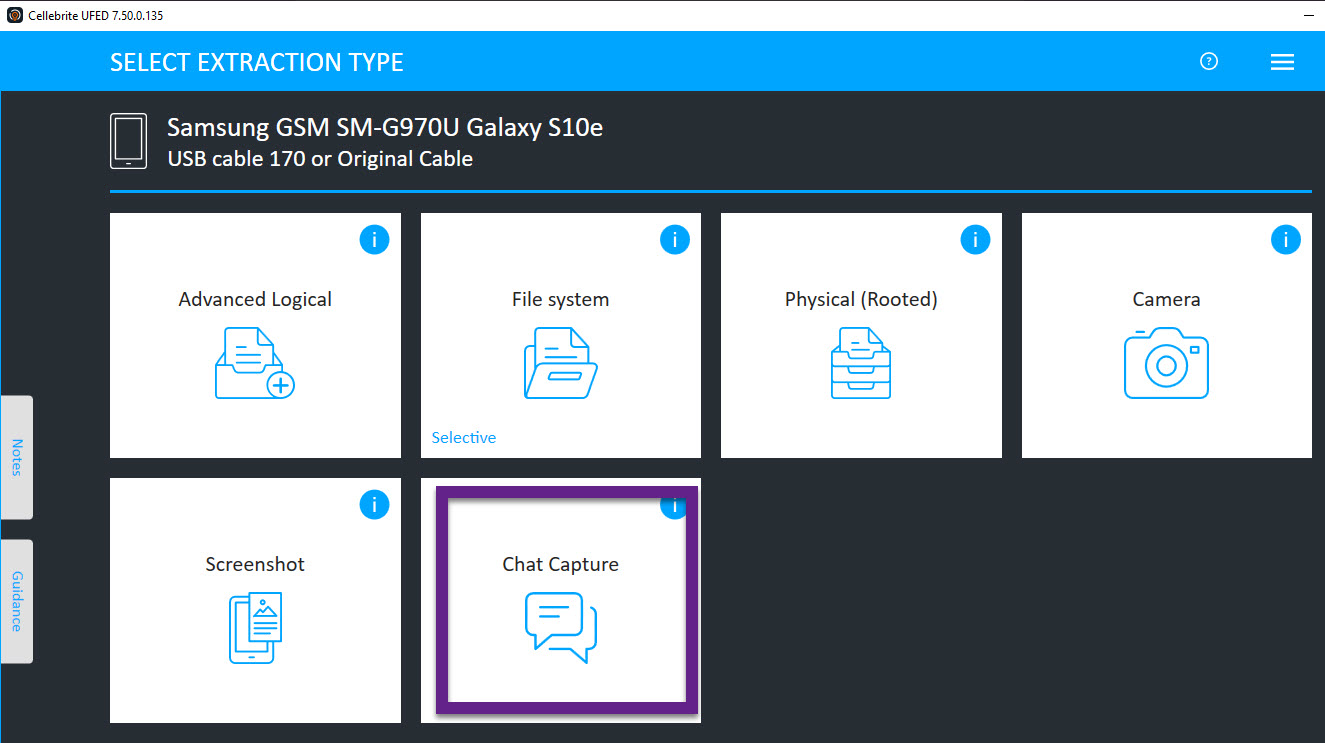
Use Cellebrite UFED to conduct a Chat Capture. I love the generic option as any screen can be captured and parsed for analysis.
I like to use chat capture to grab the settings screen of the device and to access application data that may not be extracted with the methods above. This method is great for apps that are not parsed or extracted.
Extract cloud data – IF YOU HAVE AUTHORITY! My tools of choice for this are Physical Analyzer and Elcomsoft. Magnet and Oxygen work well too.
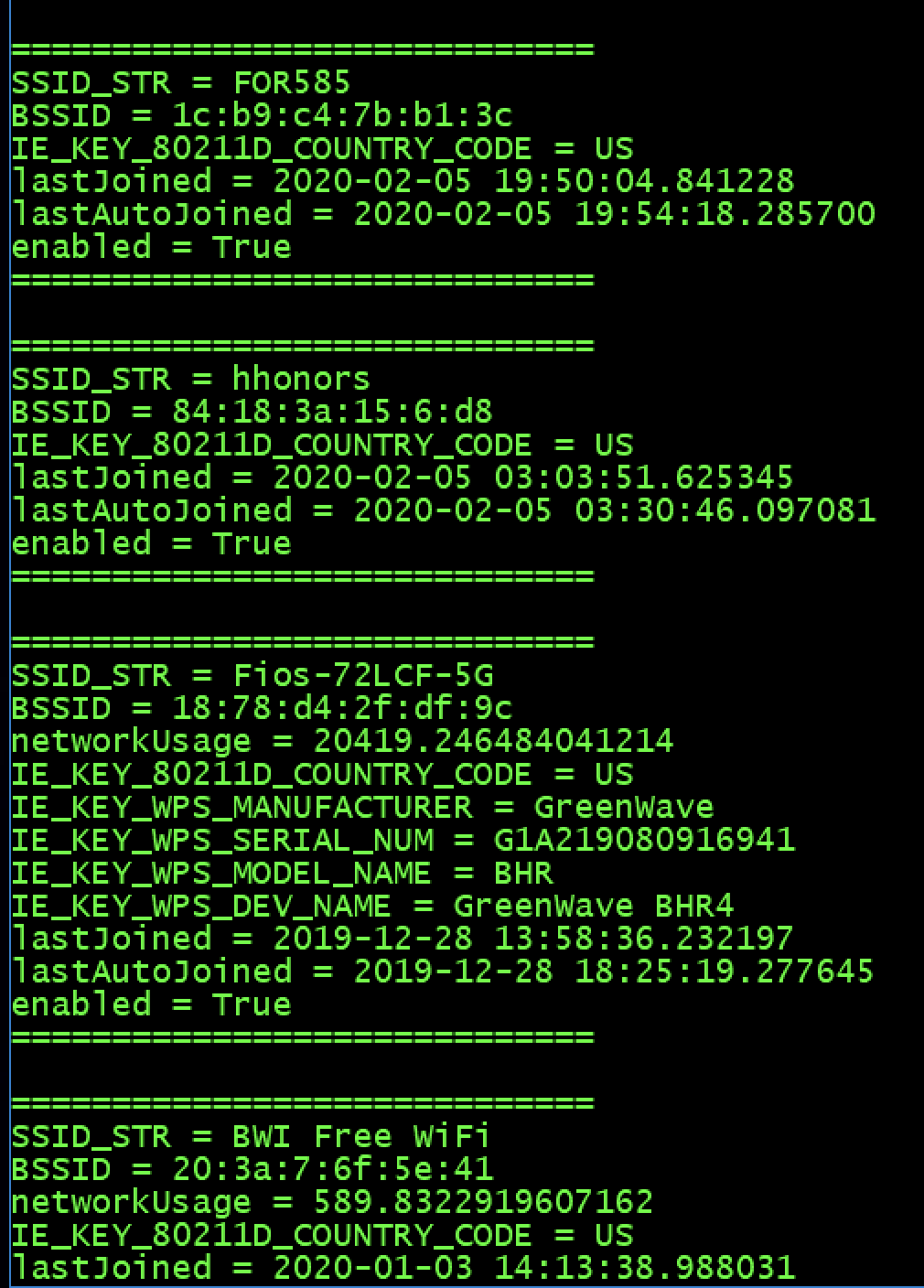
I like to run some ADB commands to the device to ensure I extracted all information and that I am aware of what exists on the Android. The script from Mattia that is mentioned above can capture all of these commands for you with a nice GUI.
ALWAYS open the extraction to ensure you got what you hoped. If you have a physical dump, Autopsy is the fastest you will gain access to your data! And it’s free. (https://www.sleuthkit.org/autopsy/). You can also use FTK Imager or a similar tool that is free for quick access.
Android acquisition leaves traces behind on the device. If you conduct covert operations – tread carefully here. Don’t go too far without knowing the footprint your tools and methods are leaving behind. These topics are covered more in the FOR585 class http://for585.com/course, in blogs and webinars found at https://www.cellebrite.com/en/resources/. Also note that multiple extractions may be necessary to capture the most information from these devices.
iOS Acquisition Recommendations
For iOS acquisition my methods have remained steady and I am not as paranoid as I am with Android. You can choose to work on a Windows or Mac. I do both. Honestly, most of my acquisitions take place on my Windows forensic workstation, but I do have a Mac that I use for jailbreaking.
Things you will need:
Install iTunes if you plan to create a backup on Windows. Finder will work on the Mac.
Install iBackupBot (I prefer this tool over the other free ones because of the option to dump the crash logs http://www.icopybot.com/download.htm
Your forensic tools of choice.
ArtEx – if you are examining a jailbroken device. Read Ian Whiffin’s blogs! http://www.doubleblak.com
Recommended iOS Steps:
Determine the iOS device type and type of iOS device.
Obtain a Full File System Extraction.
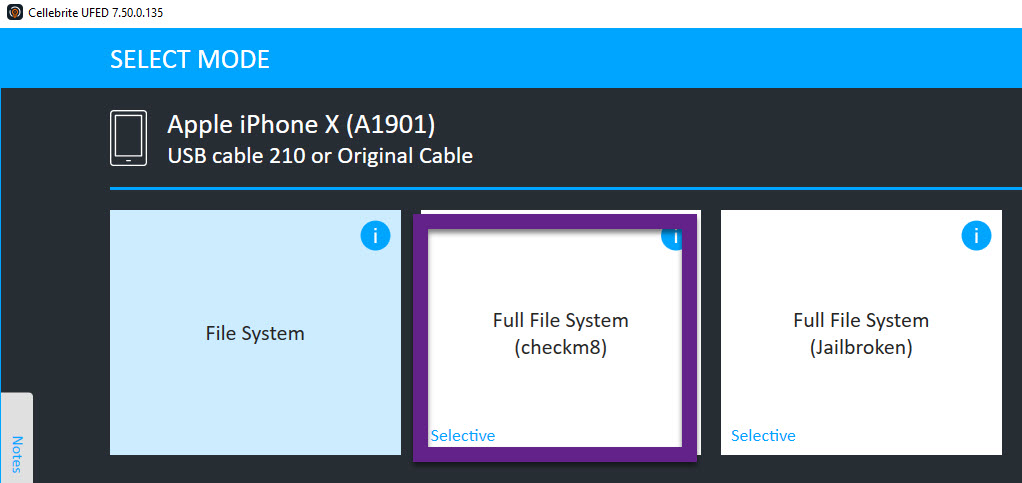
I prefer using Cellebrite UFED checkm8.
If the device is already jailbroken, I will use Cellebrite UFED Full File System. Other tools will work as well.
If I get a Full File System extraction I stop at this point other than obtaining log files, which is mentioned in steps 6 and 7.
Conduct a File System/Advanced Logical Extraction – YOU MUST ENCRYPT the extraction!
This can be done in most tools. I use Cellebrite UFED and make sure to encrypt the backup. Cellebrite will use 1234 to do this.
If using another tool make sure the option to encrypt the extraction is there or you will MISS a lot of data starting with iOS 13. Refer to my other blogs for more information on this.
If you want to be thorough, obtain a logical and/or backup file of the device. I typically stop at the Full File System or file system dump since it contains the backup if I trust my tool (refer to my old blog for more info on this topic).
Connect the device to iBackup bot and export the crash logs.
Collect sysdiagnose logs and extract them. This can be done nicely with Elcomsoft. More information is at www.for585.com/sysdiagnose
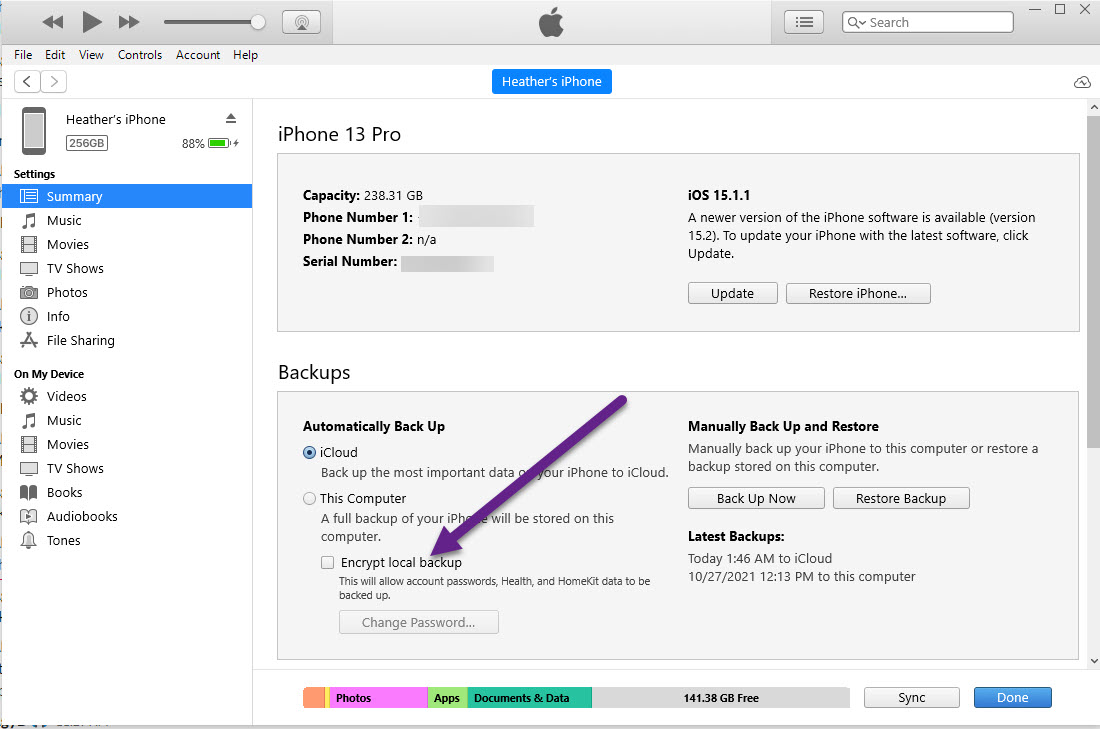
Ensure the tools you used did not enable iTunes encryption by connecting the device to iTunes and making sure “Encrypt Backup” is not selected. This should be performed prior to giving the device back to the suspect/custodian/witness.
Extract cloud data – IF YOU HAVE AUTHORITY! I prefer the same tools mentioned above in the Android part of this blog.
Everyone has their preferences on tools and acquisition methods. A Full File System is the best bang for your buck on most devices. Make sure you validate your extracted data and reach out to the vendors you leverage if issues arise.
It’s that time of year again – the Forensic 4:Cast awards season and nominations are open. Last year I won 4 awards and my team won an additional 2! It was mind blowing and humbling. Thank you again if you voted for me.
I have taken the time to think over the last two weeks on who I want to nominate and why. Last year I played it safe and made suggestions. This blog is going to be honest about who I personally nominated and why. Take it as suggestions if you are still unsure about who to nominate and why. Note: these are my personal opinions, not those of my company or SANS! https://forms.gle/r7XwVwdoUFR4We4X9
DFIR Commercial Tool of the Year – Cellebrite Physical Analyzer
PA (Physical Analyzer) has made a difference in every smartphone case I have worked. I have used this tool since it’s been logical analyzer and I have witnessed the progress and the growth over the years. Now that I work at Cellebrite, I am able to see what is coming, changes made and sprint plans. I love that I am able to push feature requests and see them integrated. While mobile may be a small facet of DFIR, Physical Analyzer adds major impact and deserves this award.
DFIR Non – commercial Tool of the Year –ArtEx
Ian Whiffin, the mastermind behind ArtEx is also a friend and co-worker of mine. ArtEx is brilliant to say the least and is a tool I rely upon to conduct iOS testing and validation. It is the fastest way to get answers without extracting and parsing data! Not only is ArtEx my new tool of choice for iOS testing, but Ian’s blogs are helpful and detailed! If you find ArtEx is missing something you need – ask Ian! Check it out: https://www.doubleblak.com/blogs.php
DFIR Show of the Year – Life Has No Ctrl+Alt+Del
This show, created by (me) Heather Mahalik and sponsored by Cellebrite has been running for exactly a year at this point. When COVID happened, I wanted a way to cheer up the DFIR community and I created a show that ran at lunch 5 days a week. That lasted 2 weeks and then I cut it back to 3 days a week. That lasted 2 months. After trying to book fresh speakers for each episode, I cut it back to Mondays and it’s still going strong! This show is about us – the DFIR community and what we know, want to know and is a forum to relax, make friends and collaborate. Check it out and start joining on Monday! https://www.cellebrite.com/en/series/ctrl-alt-del/
DFIR Blog of the Year – CellebriteAsk the Expert
My brilliant co-workers and I have been working on a series called Ask the Expert where you, the community, select topics and we record videos and write blogs on that topic. It’s current, relevant and is ongoing. Check it out here: https://www.cellebrite.com/en/ask-the-expert/
DFIR Book of the Year – iOS Research & Exploration Volume I
James Duffy wrote this book and it’s helpful in understanding key terminology and concepts for iOS devices.
DFIR Article of the Year –How to use iOS Bluetooth Connections to Solve Crimes Faster
This blog https://www.cellebrite.com/en/how-to-use-ios-bluetooth-connections-to-solve-crimes-faster/ was written by Matt Goeckel and myself and literally includes 3 years of research. It has been accepted by the DFIR Review and is hosted on that site as well. Matt and I were both researching this topic for the same Detective before ever meeting. Ironic that our worlds collided and we finished the research and closed the loop. Sharing is caring and Matt and I really do care. 🙂
DFIR Social Media Contributor of the Year – Me :)
I bust my butt on social to keep everyone informed and entertained. So nominate me. @heathermahalik on Twitter if you don’t follow me.
DFIR Training Program of the Year –SANS Cyber Camp
Lee Whitfield created the SANS Cyber Camp that ran 2 times in 2020. He recruited experts from the field to create fresh content and labs for teens around the world. Best part – it was FREE! Let’s face it, we aren’t getting any younger so the next generation of DFIR professionals need to be trained correctly and by the right people.
Most Valuable Threat Intel Contribution – STAR Webcast
DFIR Groundbreaking Research of the Year – Cellebrite Qualcomm Live in UFED
In my job, I need full file system extractions, especially with Android. UFED supports a ton of devices for full file system extractions under the Generic Qualcomm Live option. This hidden gem has helped me so many times I can’t even count!
DFIR Newcomer of the Year –Jason Wilkins or Sahil Dudani
I recommend both! Jason and I met on Life Has No Ctrl+Alt+Del (show of the year nomination) and we have been friends since. He is a loyal follower of the show and loves to learn! Show your love to Jason.
Or Sahil Dudani who I met during my FOR585 course a few years ago. Sahil is now an intern at Cellebrite as he works on his PhD at Virginia Tech. He is a go getter and will make big waves in DFIR!
DFIR Resource of the Year –Cellebrite Capture the Flag
The Cellebrite CTF was a labor of love and was a huge team effort between the Dream Team, Cellebrite Training, IT, Marketing and Product. If you haven’t created a CTF, you won’t understand the amount of work it takes to create solid datasets, create questions and run the CTF. Every second was worth it to see the participation and the outcome. And now 4 public images have bene provided for testing and training! Please nominate us. 🙂 https://www.cellebrite.com/en/cellebrite-capture-the-flag-follow-up-our-experts-review-the-questions-and-answers/
DFIR Team of the Year –Cellebrite
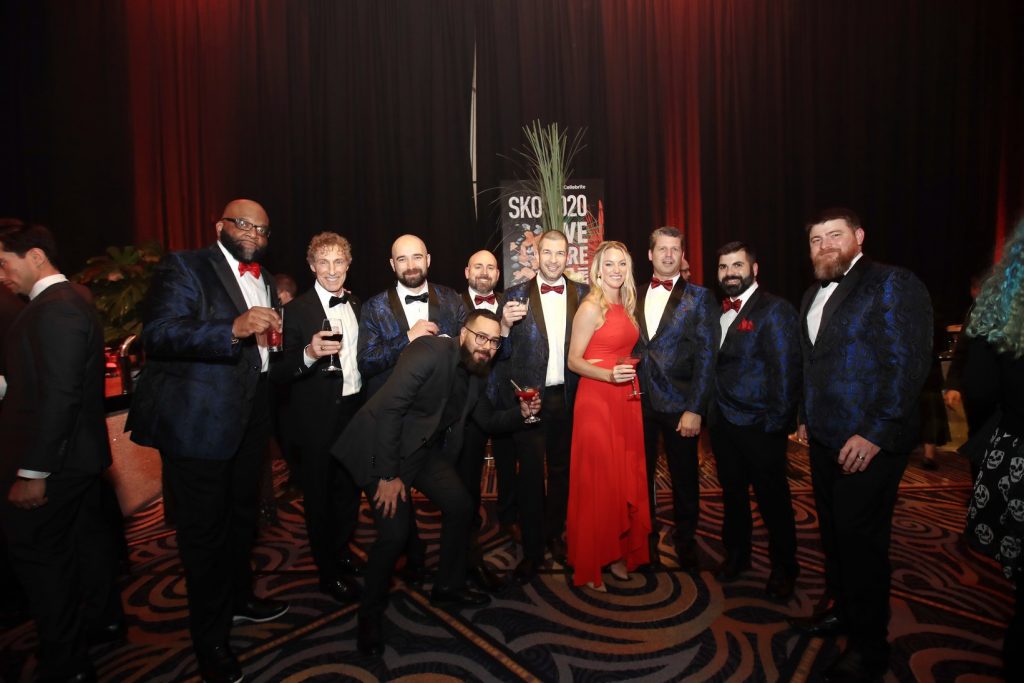
I have been with Cellebrite for almost 2 years and I can say I work with the best people on the planet. They are my nearest and dearest of friends and I trust them. I haven’t even been a part of a team where everyone cares as much as I do and at Cellebrite we all care. If you haven’t heard of the Dream Team, it’s because you haven’t attended Life Has No Ctrl+Alt+Del or I Beg to DFIR. The Dream Team is one tiny part of the entire time. We work hard and we play hard. (Note: Matt Goeckel and Ian Whiffin are missing from this pic)
Digital Forensic Investigator of the Year –Paul Lorentz
See the guy on the right in the picture above? That is Paul. If you don’t know him you should try your best to meet him. I have learned so much from Paul since being at Cellebrite. He is the master of knowing every single make, model, version, lock, encryption type and more for Android. It’s creepy scary with how much he knows off the top of his head. Not only is Paul and Android master, he loves helping customers and is always researching and sharing his findings. When you ask me questions, I guarantee Paul is on the response and helping research the solution. Paul has contributed to so many in 2020 and he deserves this aware. If you want to see some of his work, check out the webinars, join I Beg to DFIR, watch Life Has No Ctrl+Alt+Del (he is running a game show the first Mon in April) and follow him on Twitter @PaulScurvy.
This blog is a cursory glance of iOS14, which was officially released this week. To keep with my previous trends, I focus on basic artifacts that impact almost every investigation and then dive in and take a bite from the apple. Think of this blog as the bobbing part. 😊 For this blog, I tested the tools that I have available to me personally. If you think something is missing – share it. If you are a vendor and think something is missing – share it with me and I will try it for myself. At this point in time, an encrypted iTunes backup seemed to be the most stable option. I know that vendors are releasing updates to support iOS14 shortly, so be patient. If you DO NOT encrypt the backup, you will NOT extract Calls, Apple Maps (some databases extracted but are empty), Safari, Health and probably a lot more!
Apple didn’t go of the beaten path to much for the primary artifacts. There are some strange things I noted and those will be shared. Since iOS13, best practices are to encrypt your backups! If you do not, you will not get all the databases needed for basic examinations.
For this blog, I acquired many ways to compare the differences. The ones in bold were the best acquisition.
Mac Acquisition Tests:
Backup on a Mac using Finder – Encrypted
Backup on a Mac using Finder – No encryption set
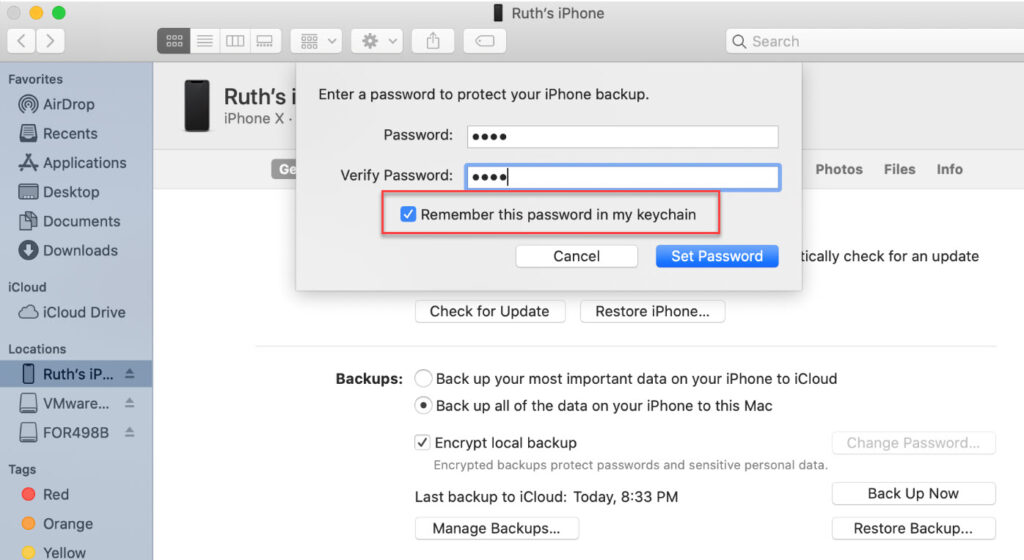
Backup on a Mac using Finder – Encryption set but DID NOT save the password to the keychain
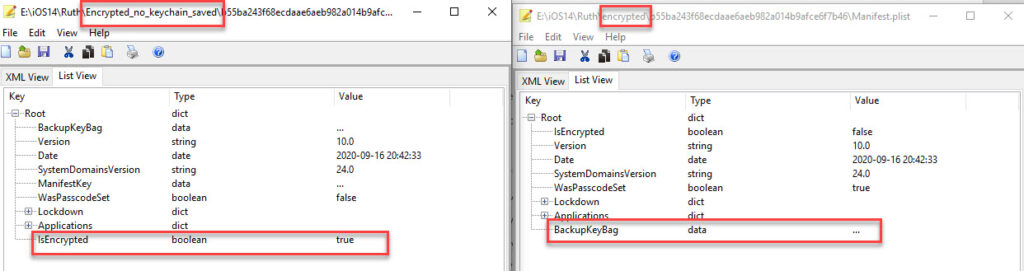
The issue I found when backing up to a Mac and saving the encryption passcode to the keychain is that the Manifest.plist does not show the encryption flag and the tools do not request the passcode for parsing.
Manifest.plist comparison
Thus, you don’t get much of anything! I loaded all of these extractions into Cellebrite Physical Analyzer and Magnet AXIOM to verify and the keychain taking the passcode really limits us examiners so pay attention when using a Mac to create a backup and DO NOT let that box stay checked or your examination opportunities will be limited.
Backing up using a Mac
Windows Acquisition Tests:
I first attempted to use a previous version of iTunes and it didn’t even see my device running iOS14. I updated and all was good from that point forward.
Backup with iTunes – Encrypted
Backup with iTunes – No encryption set
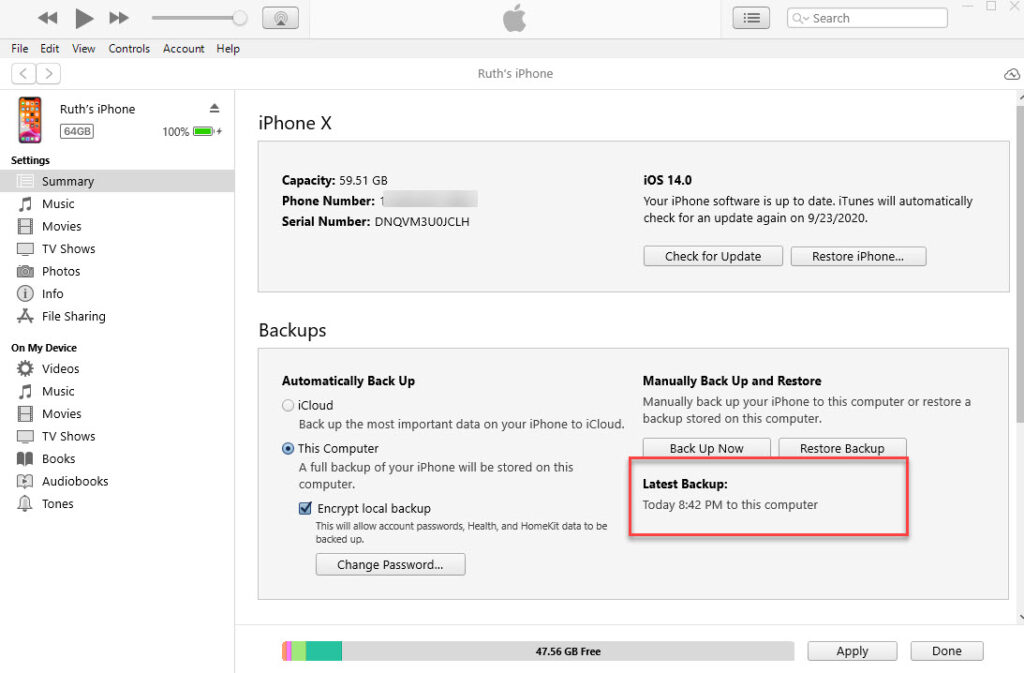
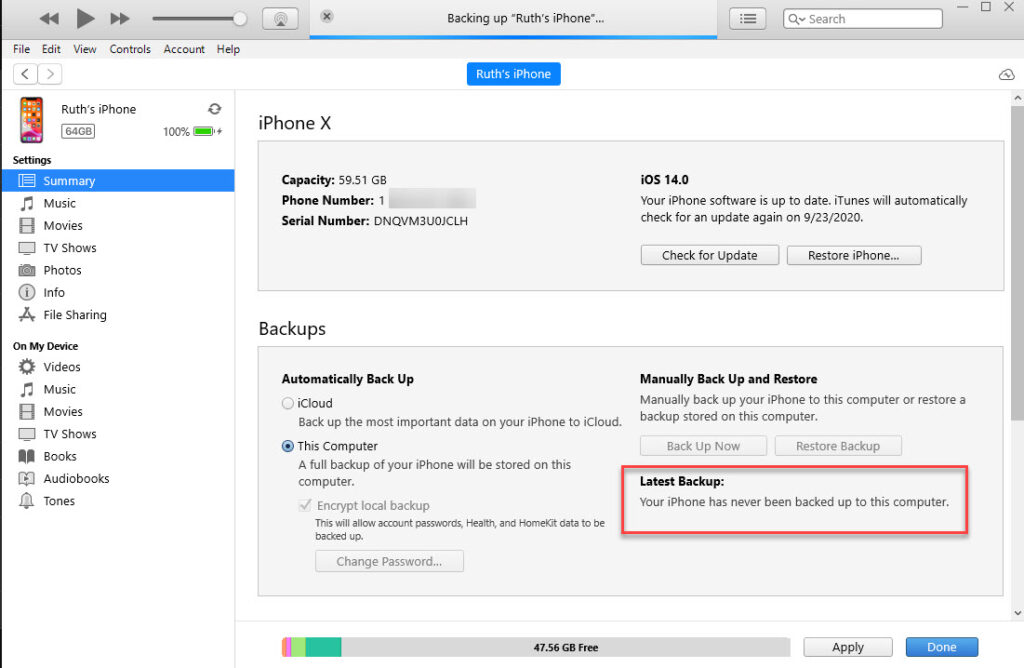
There weren’t any oddities here other than the fact that as soon as I moved my backup from the MobileSync directory, iTunes claimed it was never backed up to this PC.
iTunes backup
And a backup a few mins later.
iTunes view after backup was moved from the MobileSync directory
Keep in mind, I did about 10 backups of this device because I kept adding data and then pulling it. It makes sense if you think about it, but I know that the device stores this information, so I was surprised to see iTunes simply relying on the backup directory for this information. Bottom line do not trust what iTunes states regarding backups on the summary screen because the truth lies within the iOS device.
For this test, I created new Contacts, placed Calls (both FaceTime and regular), texted (used the new “reply to a message” feature, took photos, searched for directions (and even had to do extra drives to get really test Maps), created a note, and browsed using Safari. These are the key items that everyone should examine for most cases, so I tend to start there. My colleagues and I are going to dive into the harder artifacts (KnowledgeC, locations, Health, etc.) and will do a separate blog on that.
The common artifacts:
Contacts: var/mobile/Library/AddressBook/AddressBook.sqlitedb – parsed by commercial tools
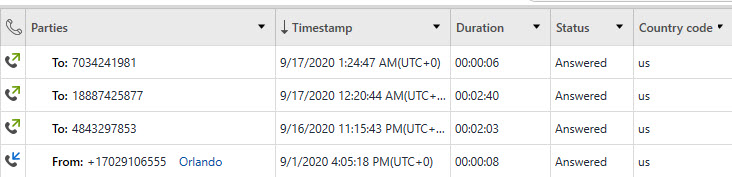
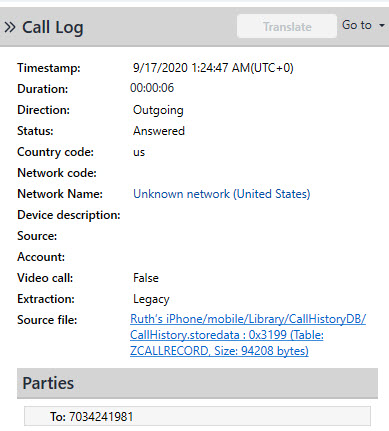
Calls: var/mobile/Library/CallHistoryDB/CallHistory.storedata – – parsed by commercial tools
PA Parsed Call Logs
PA Call logs with Source File
SMS: var/mobile/Library/SMS/sms.db – mostly parsed by commercial tools. See below for more details.
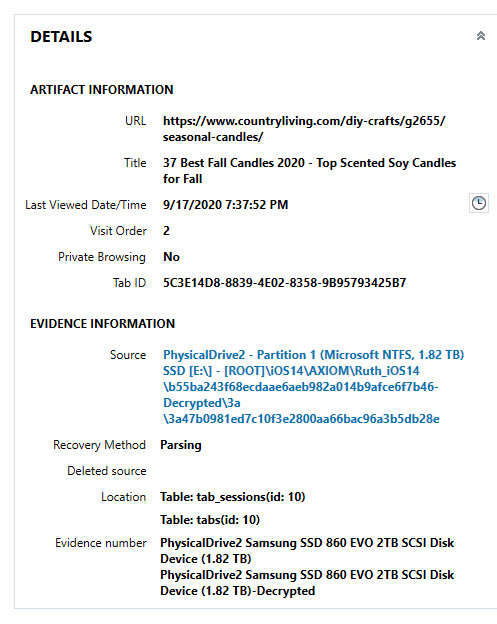
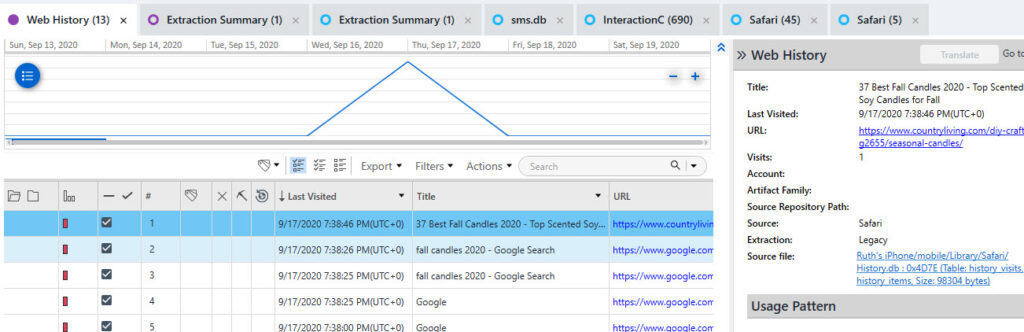
Safari: var/mobile/Library/Safari/History.db – mostly parsed by commercial tools. Note: Make sure your tool parses history, Google searches and Tab history.
AXIOM Tabbed Sessions
PA Safari History
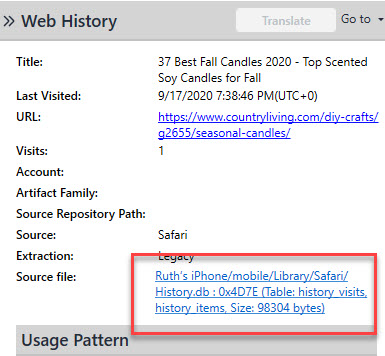
PA Safari History – Source
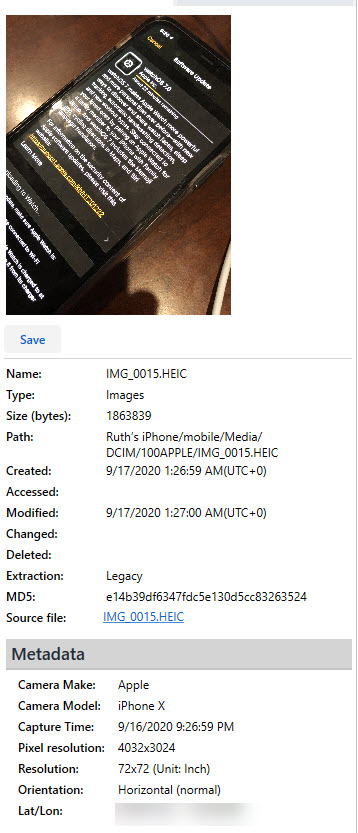
Photos: var/mobile/Media/DCIM/100APPLE/ – parsed by commercial tools – However, there is a new table. Take a look below.
Apple Maps is the biggest change and to be honest, I thought I lost them again. If you aren’t sure what I am referring to, please read my previous blogs on Apple Maps. I have spent countless hours trying to find locations and you know what’s sad – I don’t even like Apple Maps. I prefer Waze. However, as a researcher, I must test all things. Let’s take a historical look at Apple Maps.
History. mapsdata – was the primary storage file for Maps until iOS 8
MapsSync_0.0.1 – the new file on the block – this is the primary file storing iOS 14 Maps data.
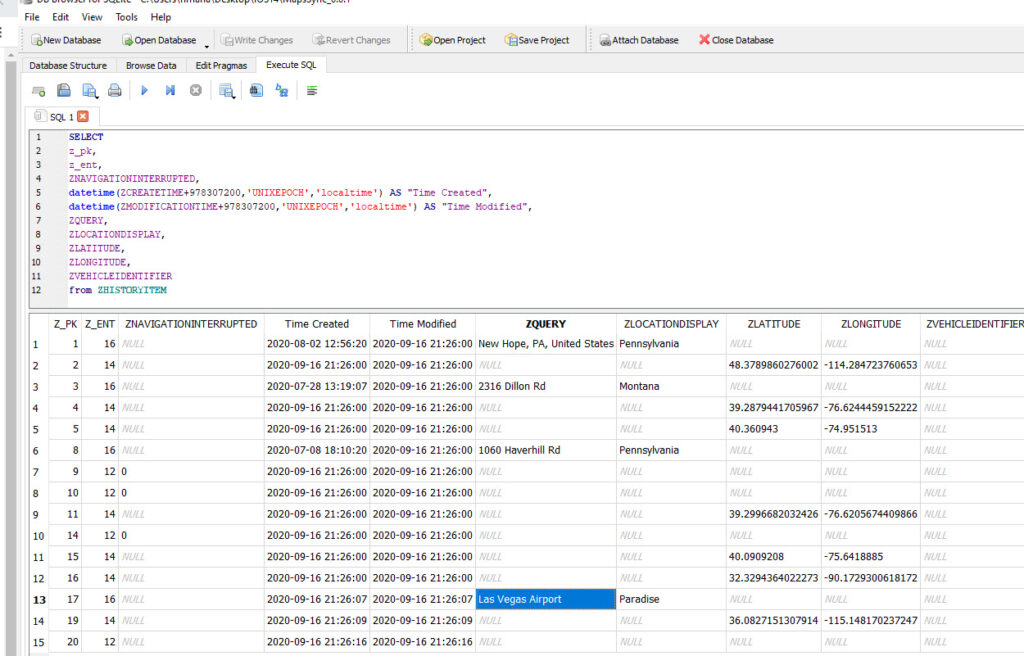
MapsSync_0.0.1 seems to only keep the last 15 history items. This is about 3-5 directions/lookups/searches based upon my testing. I dumped my device several times to confirm this. Let’s look.
Here is how it looked when I first extracted the data.
Apple Maps Data – DB Browser for SQLite
And just two Apple Maps searches later, it looked like this.
Apple Maps Data – DB Browser for SQLite
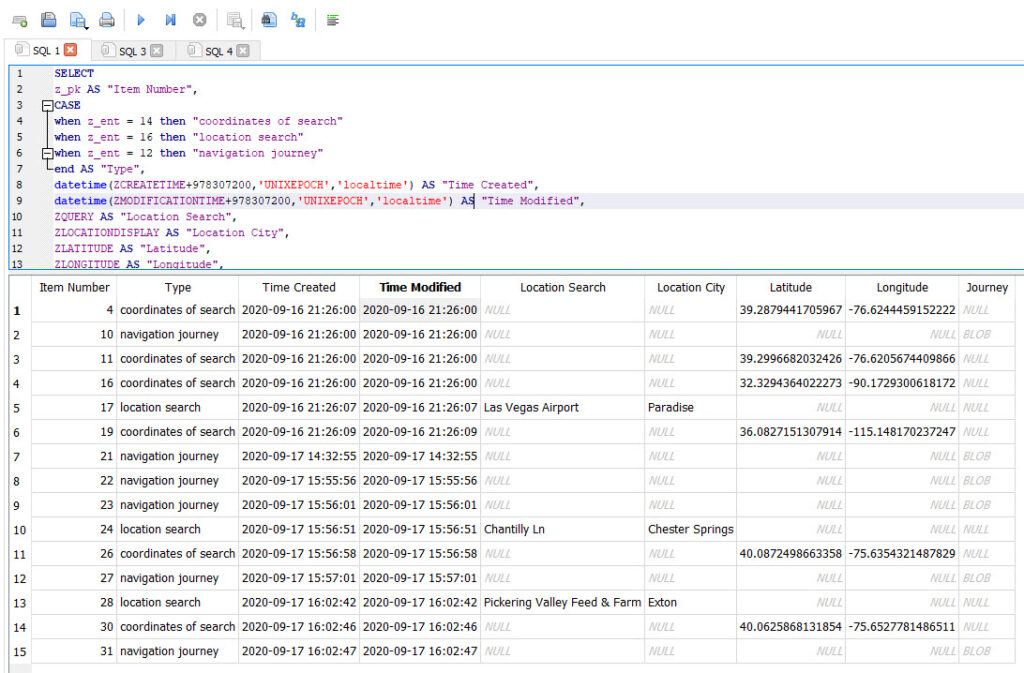
The bad news is that none of the tools I tested parse this file. The good news? Here is a query for you. Use your tool of choice to parse it. Keep in mind the “Time Created” below will reflect the time The device was updated to iOS14. Thus, this is NOT when that search occurred. To get that information, you need to examine GeoHistory.Mapsdata – the protobuf that stores this historical information.
SELECT
ZHISTORYITEM.z_pk AS "Item Number",
CASE
when ZHISTORYITEM.z_ent = 14 then "coordinates of search"
when ZHISTORYITEM.z_ent = 16 then "location search"
when ZHISTORYITEM.z_ent = 12 then "navigation journey"
end AS "Type",
datetime(ZHISTORYITEM.ZCREATETIME+978307200,'UNIXEPOCH','localtime') AS "Time Created",
datetime(ZHISTORYITEM.ZMODIFICATIONTIME+978307200,'UNIXEPOCH','localtime') AS "Time Modified",
ZHISTORYITEM.ZQUERY AS "Location Search",
ZHISTORYITEM.ZLOCATIONDISPLAY AS "Location City",
ZHISTORYITEM.ZLATITUDE AS "Latitude",
ZHISTORYITEM.ZLONGITUDE AS "Longitude",
ZHISTORYITEM.ZROUTEREQUESTSTORAGE AS "Journey BLOB",
ZMIXINMAPITEM.ZMAPITEMSTORAGE as "Map Item Storage BLOB"
from ZHISTORYITEM
left join ZMIXINMAPITEM on ZMIXINMAPITEM.Z_PK=ZHISTORYITEM.ZMAPITEM
When examining the output, I was perplexed by the lack of results, which is when I realized that number of 15 stayed constant no matter what I searched for. It appears to be transactional in nature. Also, I went through all the coordinates and realized that the Type “coordinates of search” will not show as “navigation journey” unless selected. For example, I searched for UMMC (no longer part of this database in my final dump, but the “coordinates of search” persist. The one set of coordinates is for the University Medical Center in Maryland (the one I navigated to) and the other a University Medical Center in Mississippi, which I never selected.
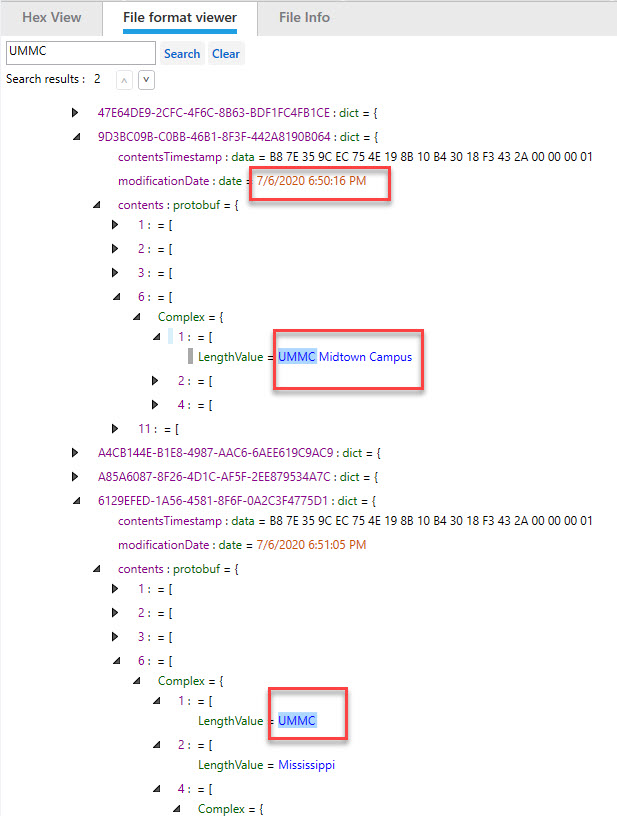
The good news – GeoHistory.mapsdata has the historical searches made in iOS13! If you do not see these in the MapsSync_0.0.1 database, go back and examine the protobuf for locations of interest. Below we can see the searches for UMMC, which are no longer in MapsSync_0.0.1 exist here.
Protobuf View in PA
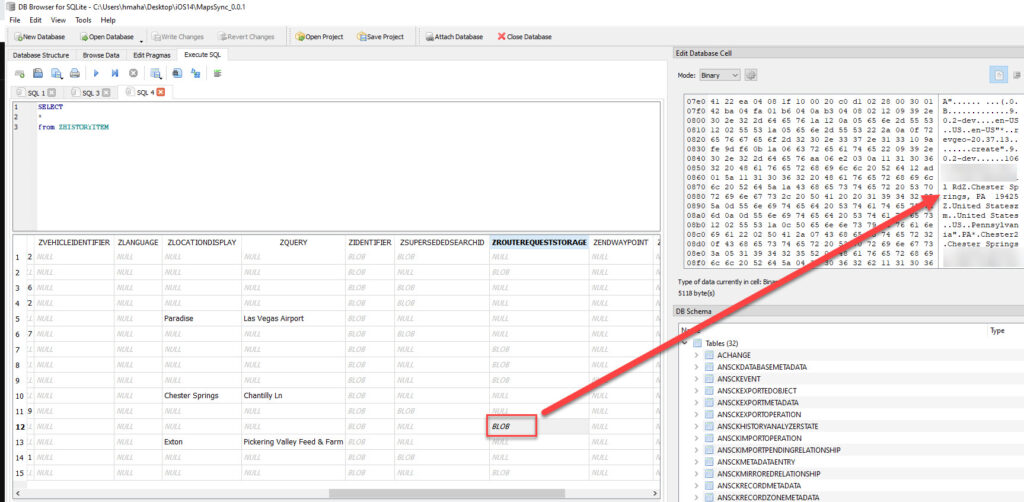
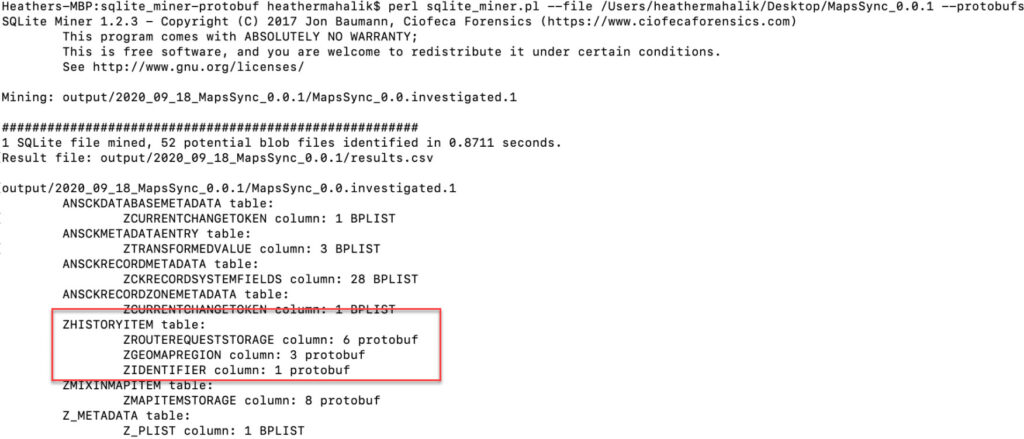
What about those BLOBS stored in “zrouterequeststorage” you ask? Well, they store your starting location and your final destination. Pretty important, right? This is the literal journey.
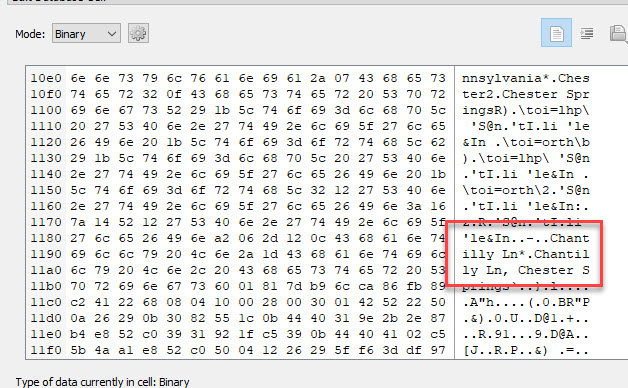
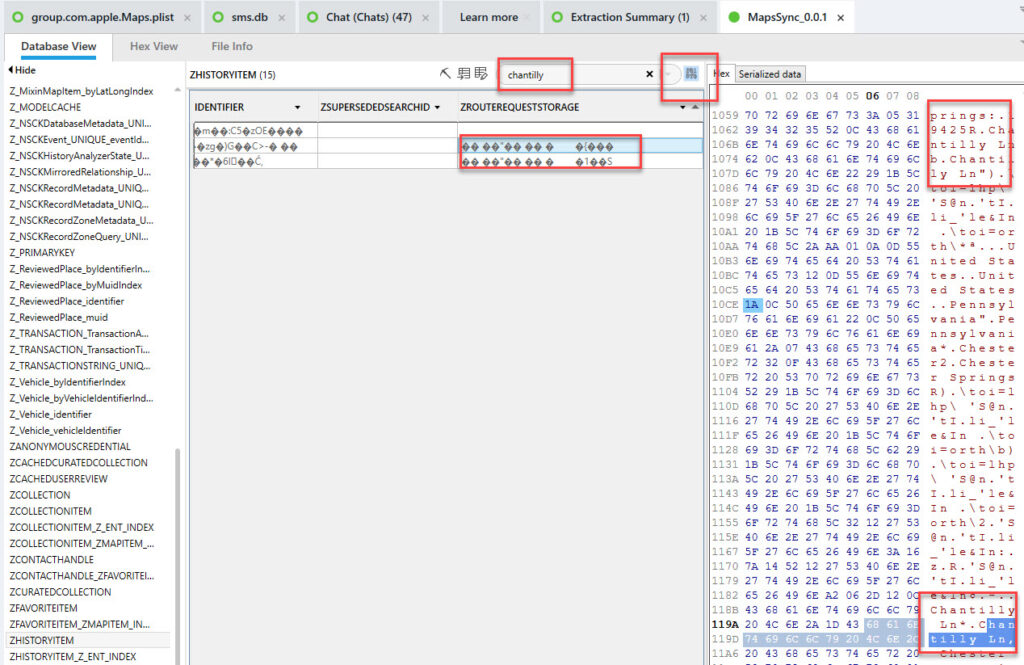
Another consideration is going back into your tool and searching around. Cellebrite Physical Analyzer has a built in button to search in binary blobs. I did two searches here. One for my home street (not sharing that here) and one for a location I navigated to/searched for (chantilly).
Searching Binary BLOBS in PA
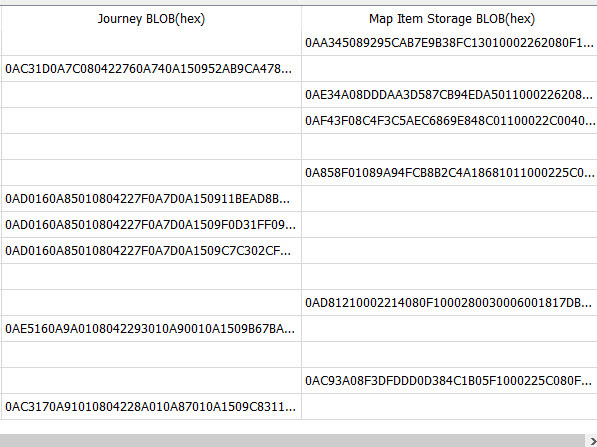
Another option is to convert the BLOBS from the query provided above to Hex so you see the output and are alerted. Again, this is a preference thing. Thanks Jared Barnhardt for the suggestion here!
SELECT
ZHISTORYITEM.z_pk AS "Item Number",
CASE
when ZHISTORYITEM.z_ent = 14 then "coordinates of search"
when ZHISTORYITEM.z_ent = 16 then "location search"
when ZHISTORYITEM.z_ent = 12 then "navigation journey"
end AS "Type",
datetime(ZHISTORYITEM.ZCREATETIME+978307200,'UNIXEPOCH','localtime') AS "Time Created",
datetime(ZHISTORYITEM.ZMODIFICATIONTIME+978307200,'UNIXEPOCH','localtime') AS "Time Modified",
ZHISTORYITEM.ZQUERY AS "Location Search",
ZHISTORYITEM.ZLOCATIONDISPLAY AS "Location City",
ZHISTORYITEM.ZLATITUDE AS "Latitude",
ZHISTORYITEM.ZLONGITUDE AS "Longitude",
hex(ZHISTORYITEM.ZROUTEREQUESTSTORAGE) AS "Journey BLOB(hex)",
hex(ZMIXINMAPITEM.ZMAPITEMSTORAGE) as "Map Item Storage BLOB(hex)"
from ZHISTORYITEM
left join ZMIXINMAPITEM on ZMIXINMAPITEM.Z_PK=ZHISTORYITEM.ZMAPITEM
BLOB output as HEX – DB Browser for SQLite
I plan to keep digging into Apple Maps and will blog more as I find more information. For now, use this query if you dump a device running iOS14. Don’t be afraid to make it your own too! You will see many columns that I could not get to populate with valuable information.
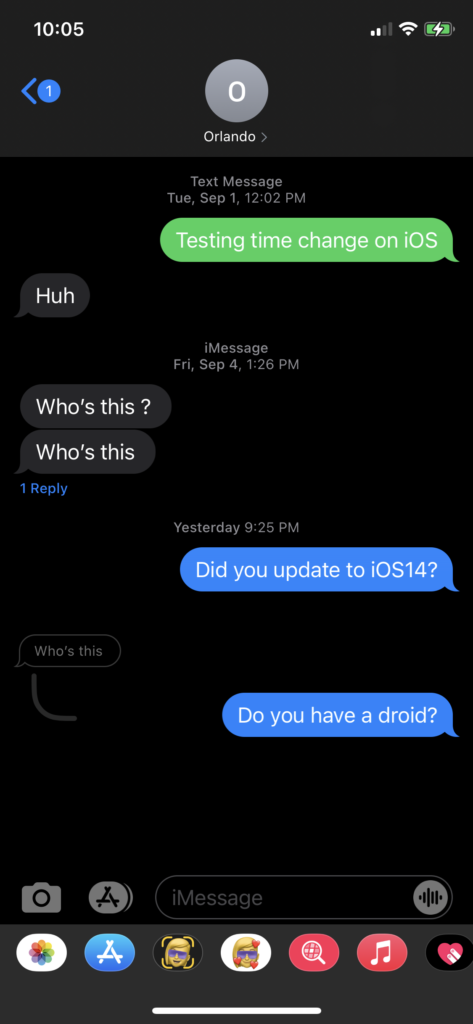
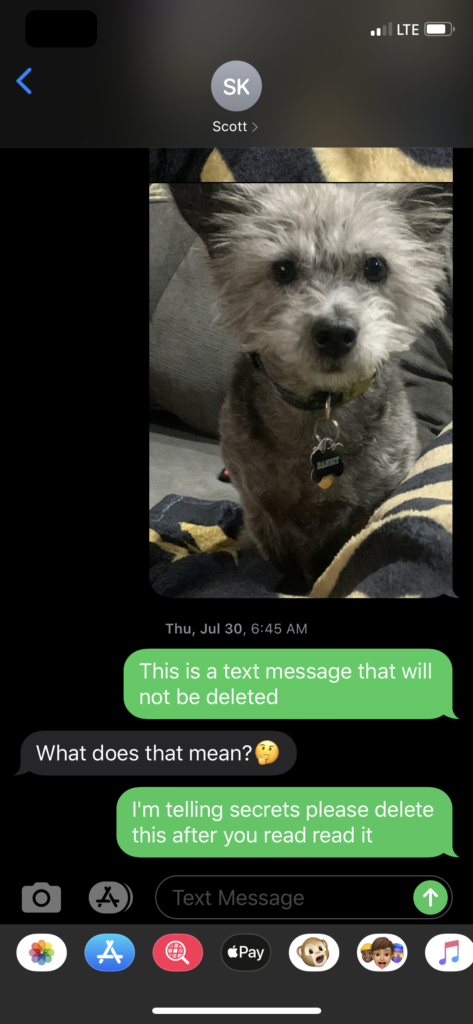
For iMessage, you can now reply to a single portion of the conversation. The below screenshot shows you how this appears on the device.
Reply To Message
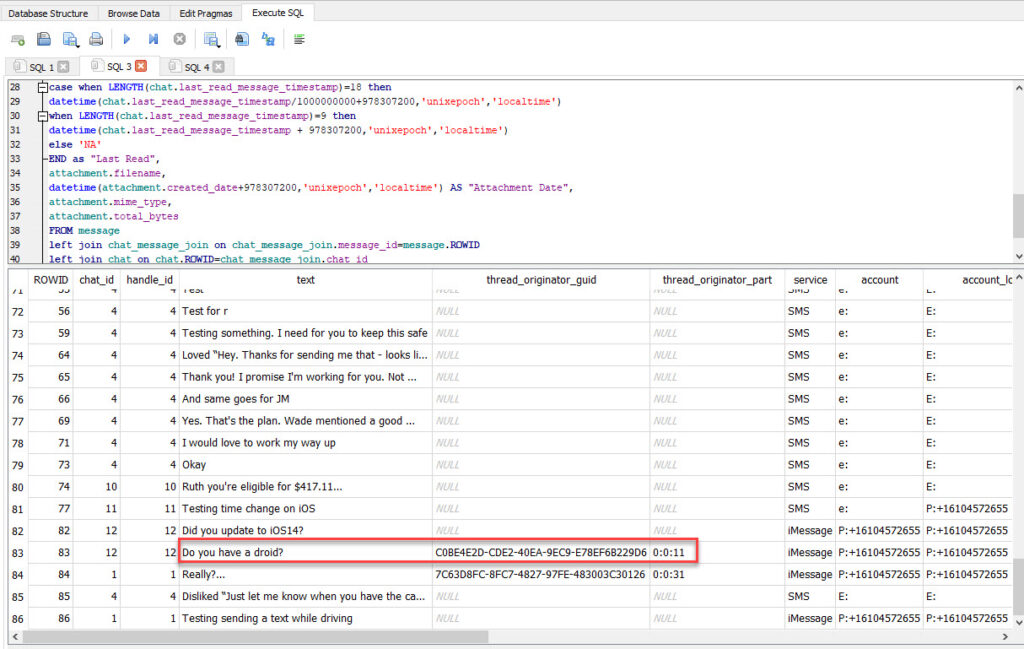
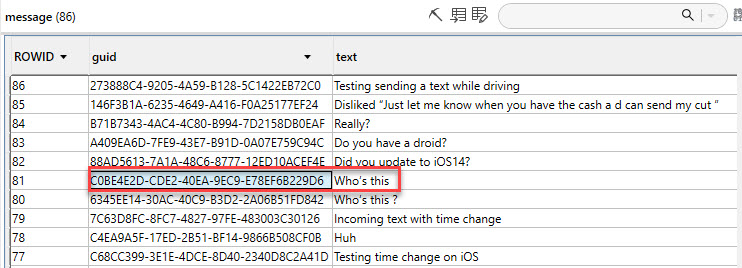
The database has two new columns called “thread_originator_guid” and “thread_originator_part” which appear to be what the tools are not yet parsing and is what alerts you to the message the reply was to. I have yet to determine what the “thread_originator_part” means.
SMS Reply To – DB Browser for SQLite
SMS Reply To – DB Browser for SQLite
Refer to the screenshot from the phone to put this all together. Until the tools catch up, here is a query that will get you part of the way. It’s not perfect, and I plan to try to merge them. Maybe one of my friends will help write a script for it (Calling Brigs, Ian and Cheeky4n6Monkey!). The query below has been updated for iOS14.
SELECT message.rowid,
chat_message_join.chat_id,
message.handle_id,
message.text,
message.thread_originator_guid,
message.thread_originator_part,
message.service,
message.account,
chat.account_login,
chat.chat_identifier,
case when LENGTH(chat_message_join.message_date)=18 then
datetime(chat_message_join.message_date/1000000000 + 978307200,'unixepoch','localtime')
when LENGTH(chat_message_join.message_date)=9 then
datetime(chat_message_join.message_date + 978307200,'unixepoch','localtime')
else 'NA'
END as "Message Date",
case when LENGTH(message.date_read)=18 then
datetime(message.date_read/1000000000 + 978307200,'unixepoch','localtime')
when LENGTH(message.date_read)=9 then
datetime(message.date_read+978307200,'unixepoch','localtime')
else 'NA'
END as "Date Read",
case when message.is_read=1
then 'Incoming'
when message.is_read=0
then 'Outgoing'
end as "Message Direction",
case when LENGTH(chat.last_read_message_timestamp)=18 then
datetime(chat.last_read_message_timestamp/1000000000+978307200,'unixepoch','localtime')
when LENGTH(chat.last_read_message_timestamp)=9 then
datetime(chat.last_read_message_timestamp + 978307200,'unixepoch','localtime')
else 'NA'
END as "Last Read",
attachment.filename,
datetime(attachment.created_date+978307200,'unixepoch','localtime') AS "Attachment Date",
attachment.mime_type,
attachment.total_bytes
FROM message
left join chat_message_join on chat_message_join.message_id=message.ROWID
left join chat on chat.ROWID=chat_message_join.chat_id
left join attachment on attachment.ROWID=chat_message_join.chat_id
order by message.date_read desc;
Bottom line – Apple isn’t rotten. The days I spend researching and blogging are for my family until I press submit! 😊 Please research and share! Validation is key. We all need to do it! Create test data and try it for yourself. If you find bugs, report them to vendors. If you find gaps, report them, and find someone who can build a tool to parse it. It’s our job in DFIR to educate and share. Happy hunting on iOS 14! And you may see this image coming to you publicly soon!
First, I would like to thank Heather Mahalik for her help with this process and for allowing me to post something on her blog. It’s an honor! Additionally, thanks to Jared Barnhart for his assistance with research and with testing.
I must apologize if you have already taken the time to read through this blog. It was my first research blog and after it was posted, I felt it was missing a few things. I debated over rewriting it or just following up with an additional blog. I came to the conclusion editing the original and reposting the entire blog was the best method to get you all of the information.
Synopsis: During an examination and analysis, I learned some interesting things and would like to share them with you. After the examination of an Apple iPhone 7, I discovered some photos were captured using the camera application (com.apple.camera.CameraMessagesApp) from within the native iPhone messaging application (com.apple.MobileSMS). As a result of photos being captured, several files were created that I have not observed during my past examinations and I had a few questions.
Was this because I was examining a full file system extraction?
or
Was it because I haven’t been paying close enough attention during my exams?
Either way, I set out to test and validate what I discovered.
Suspect’s Device: Test Device:
Apple iPhone 7 (A1778) Apple iPhone XS (A1920)
iOS 13.4.1 (17E262) 13.5.1 (17F80)
During testing, I did not find any significant changes between 13.4.1 and 13.5.1 that would make the testing invalid. I did notice when looking an iOS 12.*.* FFS extraction there were some differences.
Important to note: While working on cases after this blog was initially written I noticed there were some difference between iOS 12 and iOS 13. Mainly, iOS 13 devices contained more data in /private/var/mobile/Containers/Data/PluginKitPlugin/<UUID>/tmp/ locations than iOS 12 devices. I only mention this so you are aware there could be additional differences that have not been discussed.
Acquisitions:
After First Unlock (AFU) Full File System (FFS) (Suspect’s device and test device).
While examining the suspect’s device and analyzing the data, I had a few questions about the data being displayed and how it was created. I formulated a few scenarios that might help demonstrate and explain what happened:
Scenario #2 – What happens when a photo is captured from within native iOS messenger, sent as an attachment message and the message that contained the attachment is later deleted from the conversation thread (/private/var/mobile/Library/SMS/Attachments/)?
Scenario #3 – What happens when a photo is captured within native iOS messenger, sent as an attachment message and the photo sent as an attachment is later deleted from the Photos Application (/private/var/mobile/Media/DCIM/)?
Scenario #1 – What happens when a photo / live photo is captured using the camera application within native iOS messenger and sent as an attachment:
During the testing I followed the steps below to capture both photos and live photos:
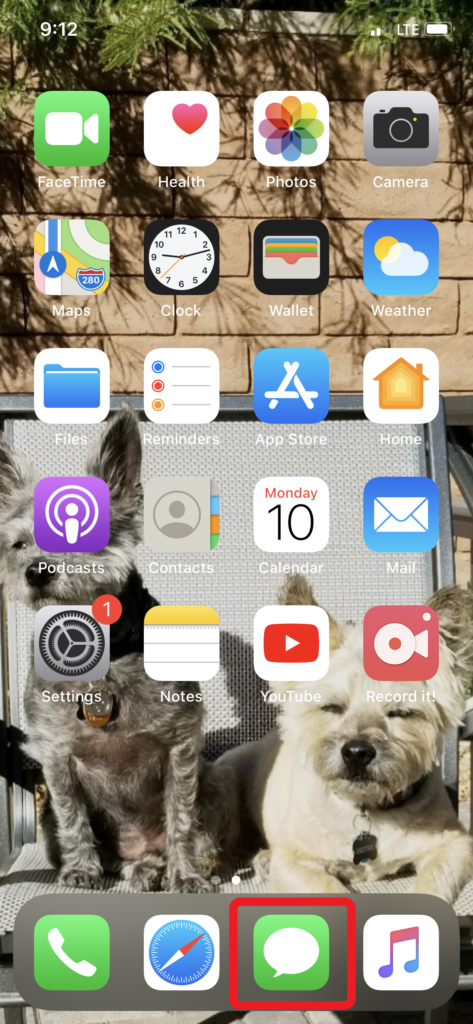
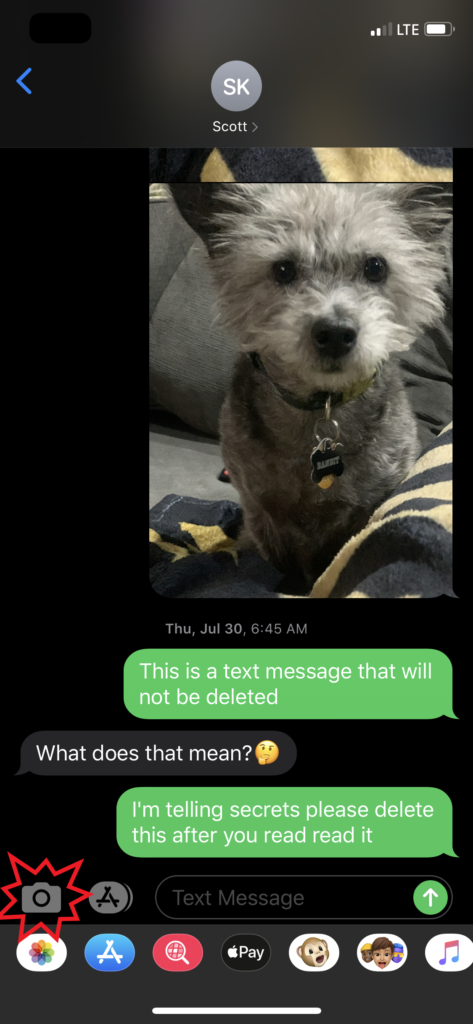
Launched the native iOS messenger application (Figure 1.1) and entered a conversation thread (Figure 1.2).
Figure 1.1
Figure 1.2
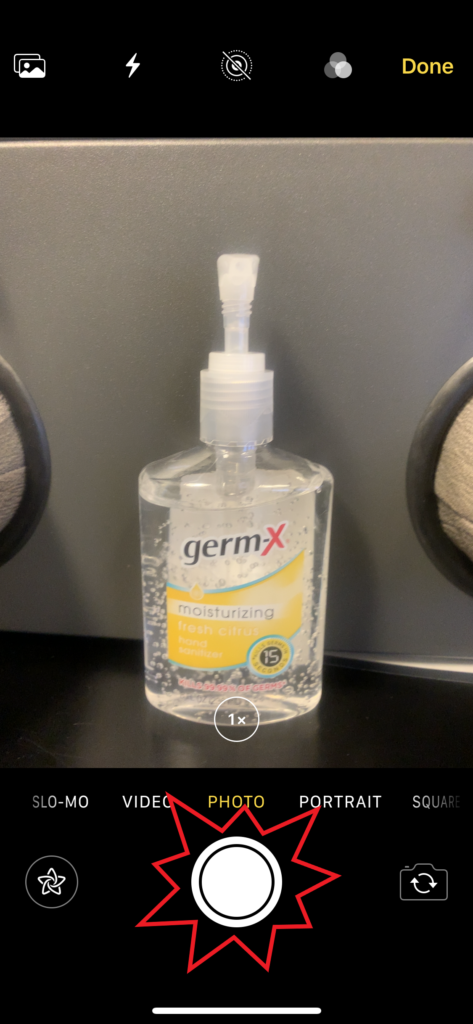
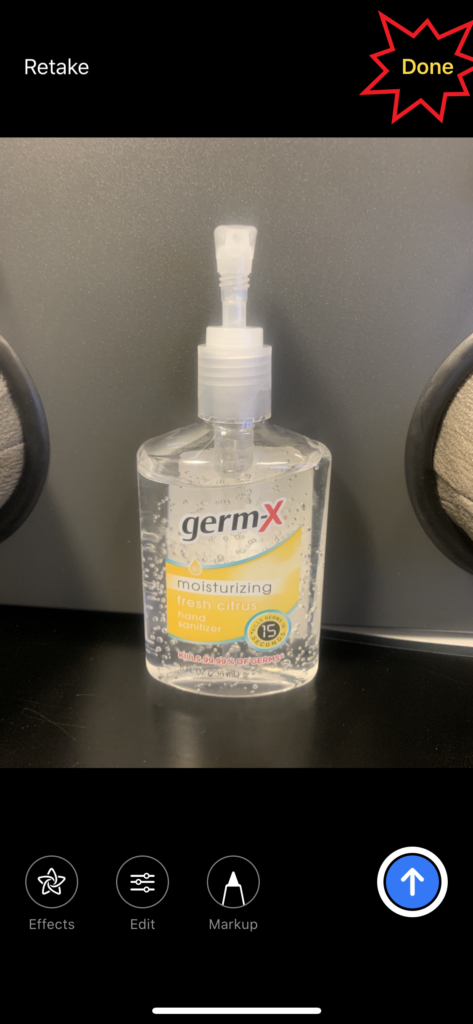
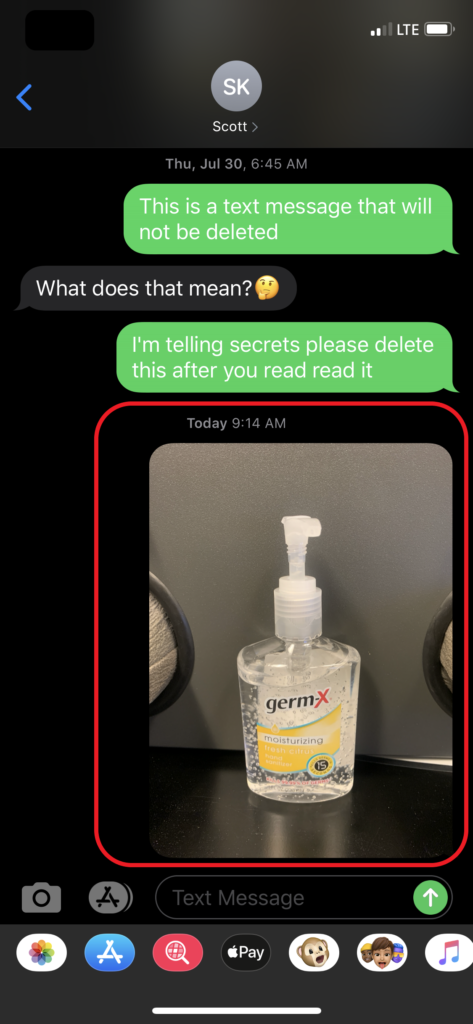
From the conversation thread clicked the camera icon (Figure 1.3), a photo was captured (Figure 1.4) and clicked done (Figure 1.5). Note: Figure 1.5 this is a preview of the photo that can be sent. But wasn’t this a photo that was captured?? Thanks to Jared Barnhart’s help, I learned this photo is in fact saved to the device even if the user chooses to “Retake” the photo. This photo will be stored in the /private/var/mobile/Containers/Data/PluginKitPlugin/<UUID>/tmp/ folder.
Figure 1.3
Figure 1.4
Figure 1.5
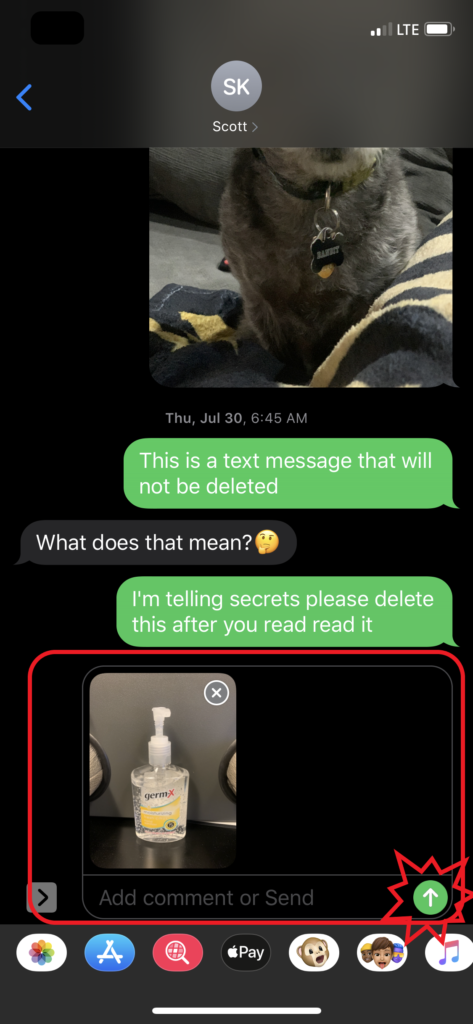
A preview then appeared (Figure 1.6) and clicked the up arrow to send the photo to its recipient without any text (Figure 1.7).
Figure 1.6
Figure 1.7
Now let’s take a look at what happens within the device when these actions occurred.
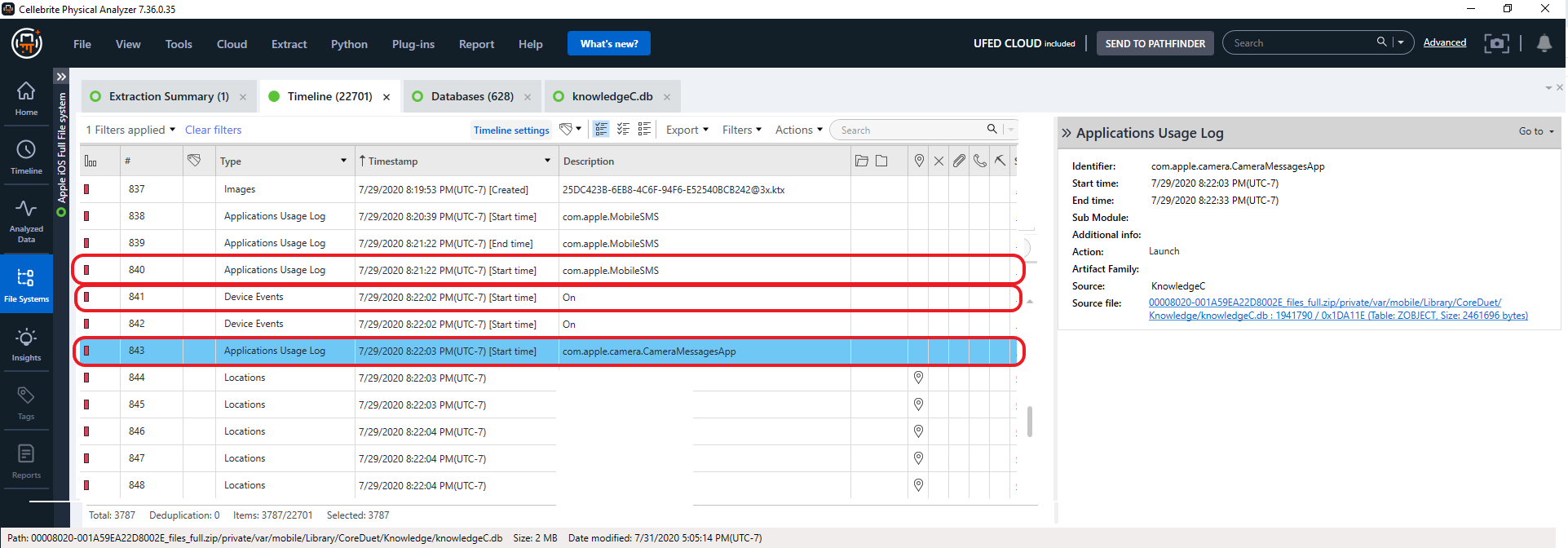
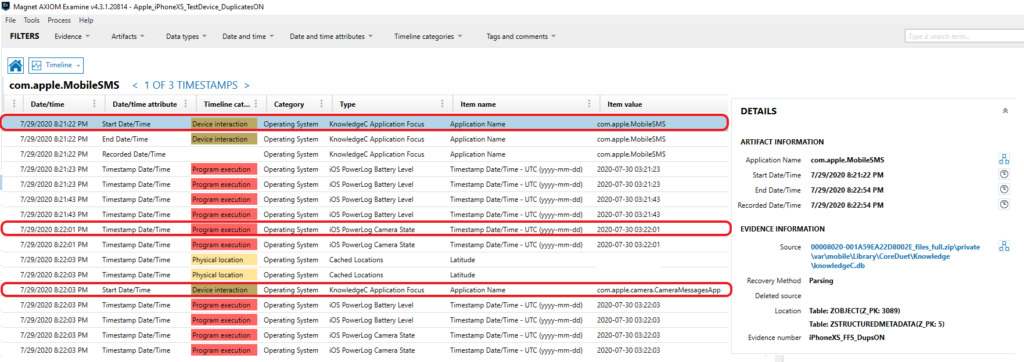
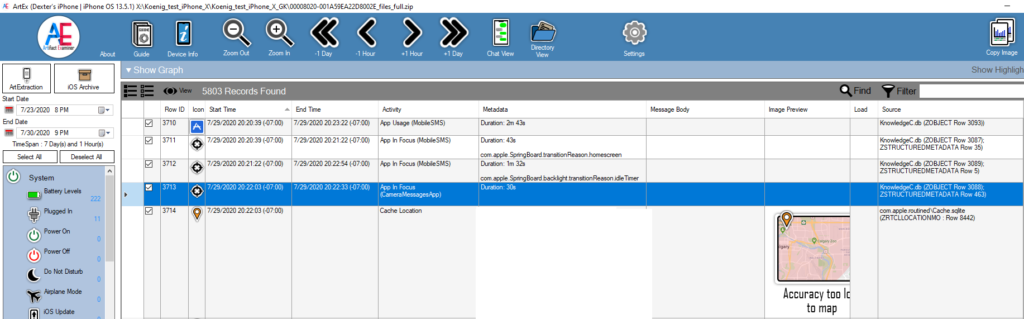
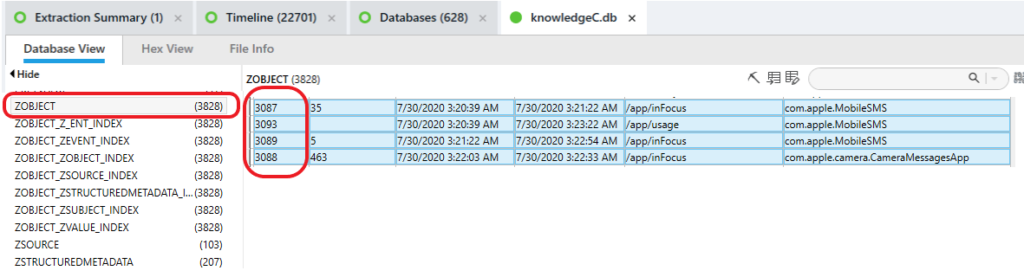
The application usage and applications in focus was recorded within the KnowledgeC database. There are several resources and published research about the KnowledgeC database and what can be found within it. I would encourage you to take the time to review the list of references and other sources at the end of this blog.
8:21:22 PM – 8:22:54 PM the application (com.apple.MobileSMS) was launched and in use.
During that time:
8:22:01 PM – the back camera was turned on
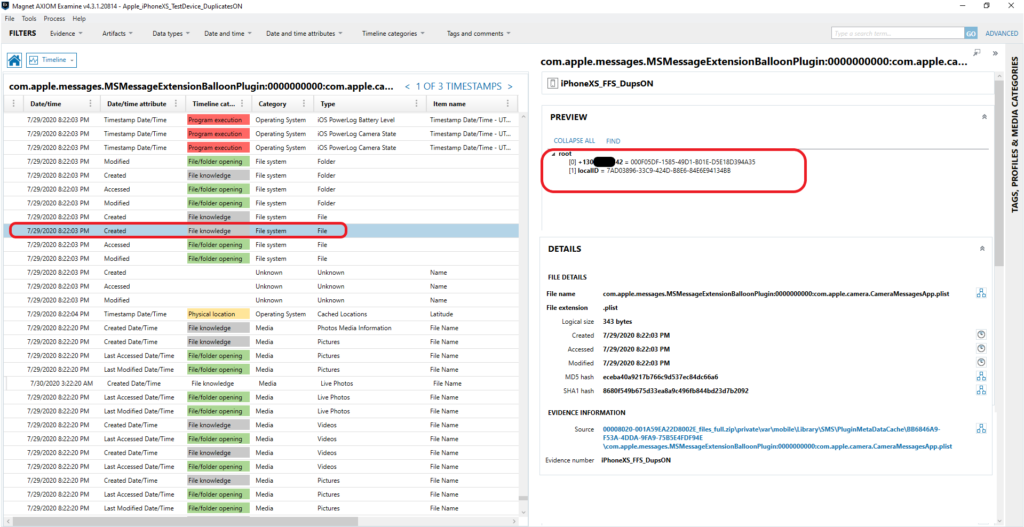
8:22:03 PM – the application (com.apple.camera.CameraMessagesApp) was launched and several cached locations were created and stored in Cache.sqlite – ZRTCLLOCLATIONMO table. These locations were accurate for where the device was located during testing. If you have additional questions about location data please see Ian Whiffin’s presentation in the list of resources.
8:22:03 PM – Miscellaneous file path locations were opened, modified and created related to \private\var\db\uuidtext\. I haven’t researched or decoded any of these but wanted to mention it.
Figure 1, Figure 2, Figure 2.1 Figure 3 and Figure 4 are examples of how different tools represented the launched applications and what was decoded.
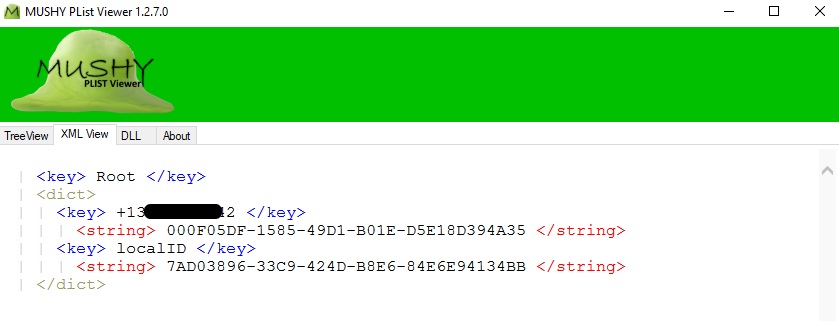
In Figure 4 we can see this plist can be viewed within AXIOM and could also be viewed within PA. I saved, exported and opened the plist using Ian Whiffin’s Mushy plist viewer. See Figure 4.1. The plist contained the phone number and the associated UUID’s for the device the attachment message was sent to.
Figure 4 – AXIOMFigure 4.1 – Mushy Plist Viewer
This plist was also in the suspects device and contained a list of phone numbers and their associated UUID’s. There appears to be different property lists for different types of messages sent:
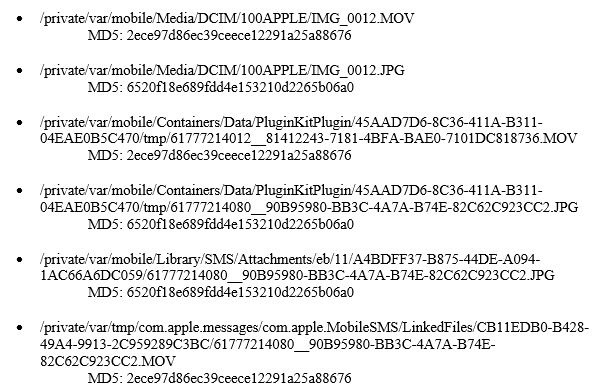
At 8:22:20 PM a live photo of my friend Dexter was captured, which resulted in several files being created on the device to include the following:
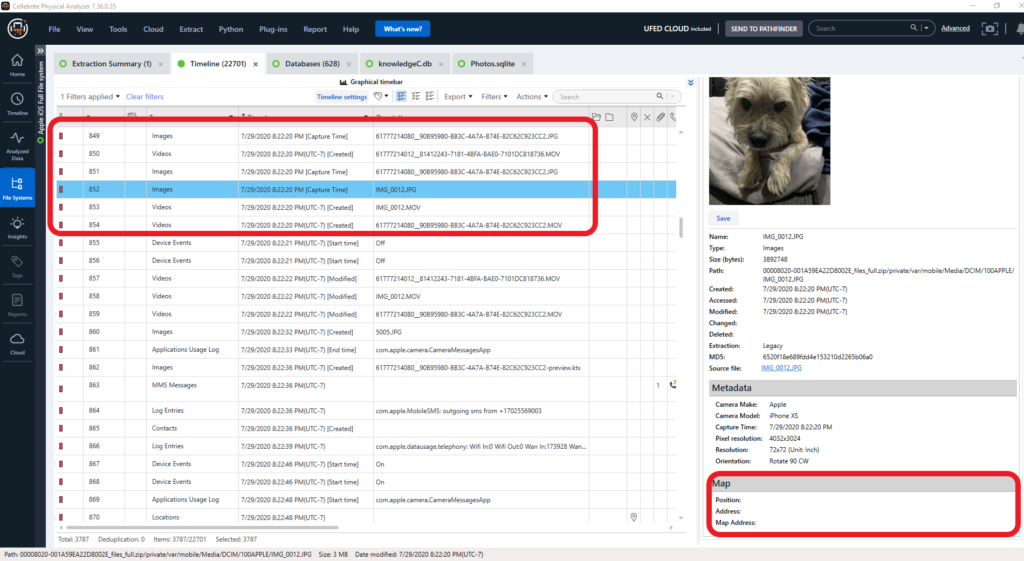
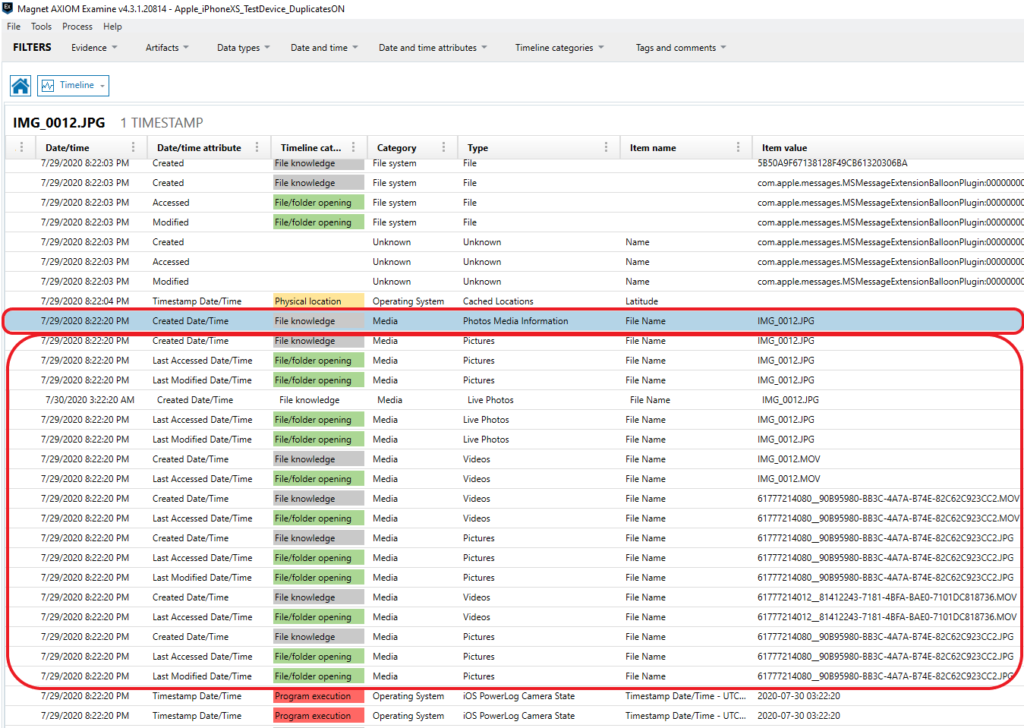
Each tool used to examine the test data, put these files in a different order in the timeline, but they all had the same capture and created time of 8:22:20 PM. See Figure 5.
Figure 5 – PAFigure 5.1 – AXIOM
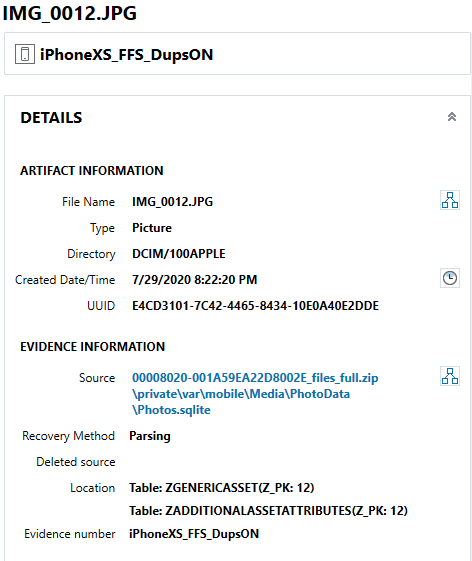
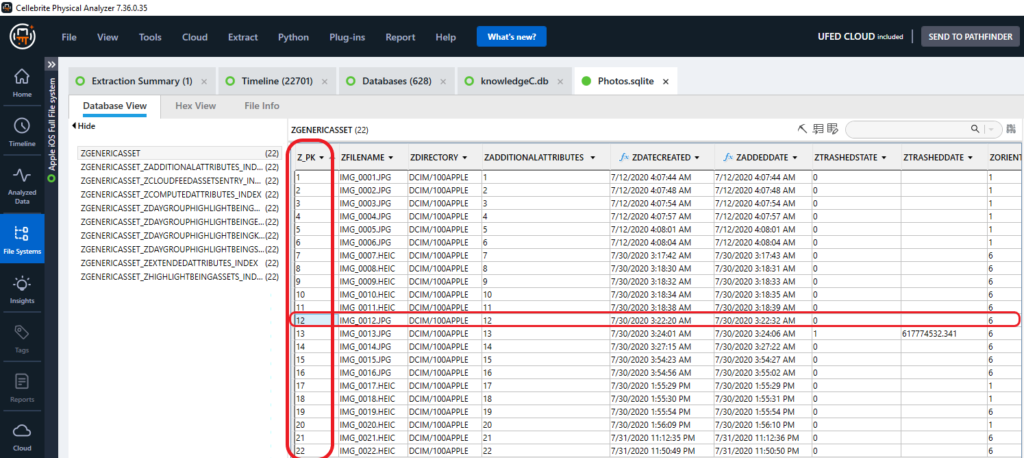
Figure 5.1 within AXIOM – Timeline, there is an event for an entry being made into the Photos.sqlite database. See Figure 5.2 and Figure 5.3 for more details.
Figure 5.2 – AXIOM
Photos.sqlite information
Figure 5.3 – Photos.sqlite – PA
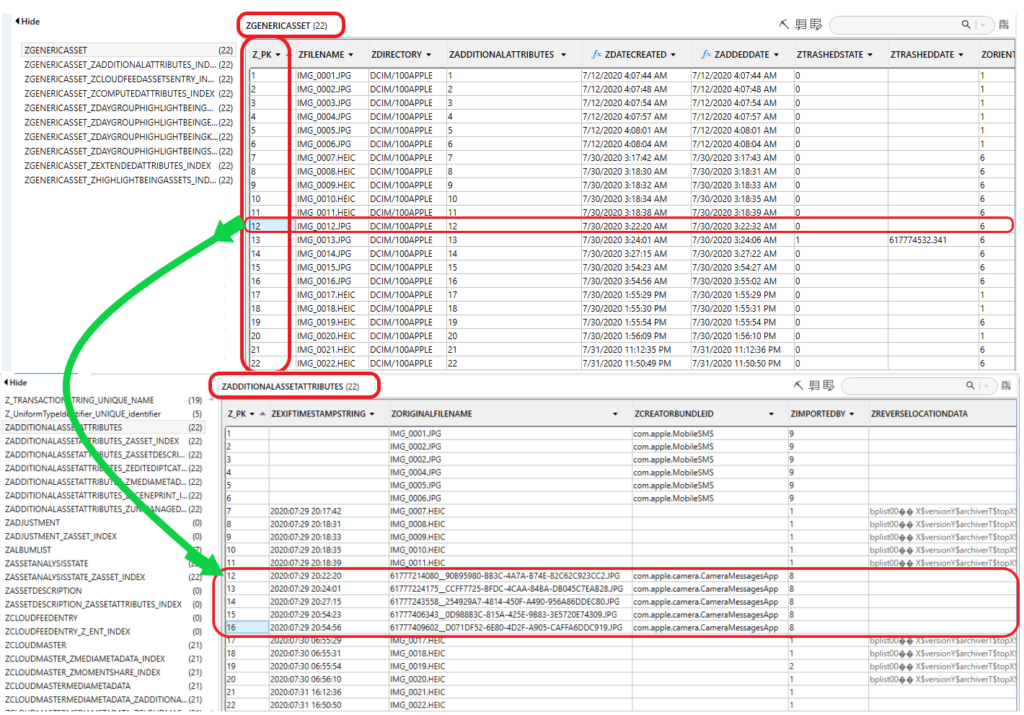
In Figure 5.3 we are looking within PA SQLite Viewer and looking at the Photos.sqlite database ZGENERICASSET table. Notice that all of the PK values are in sequential order and there are no missing values, indicating that the list is complete. I just stated when I took a photo of Dexter there were multiple files created to include IMG_0012.MOV. Where is the information about the additional files? More on this is to come in this blog.
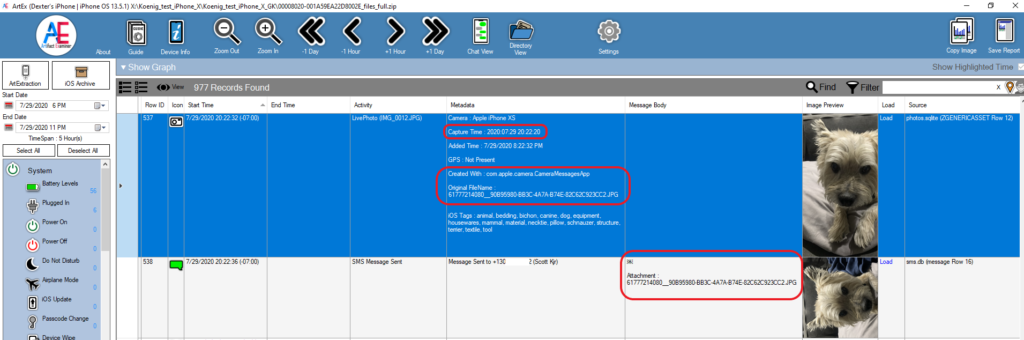
Notice in Figure 5.3 there’s indication that an entry was also made in Photos.sqlite ZADDITIONALASSETATTRIBUTES table. Notice AXIOM is indicating that both the Z_PK value and the ZADDITIONALASSETATTRIBUTES value are the same. More about this later in the blog. Got to give a big shout out to Ian Whiffin here. I first noticed these values when viewing the full file system dump from within his tool Artifact Examiner (ArtEx). I reached out to him with a few questions, which he answered right away. It helped so much while examining the suspect’s device…Thanks Ian!! See Figure 6.
Figure 6 – ArtEx
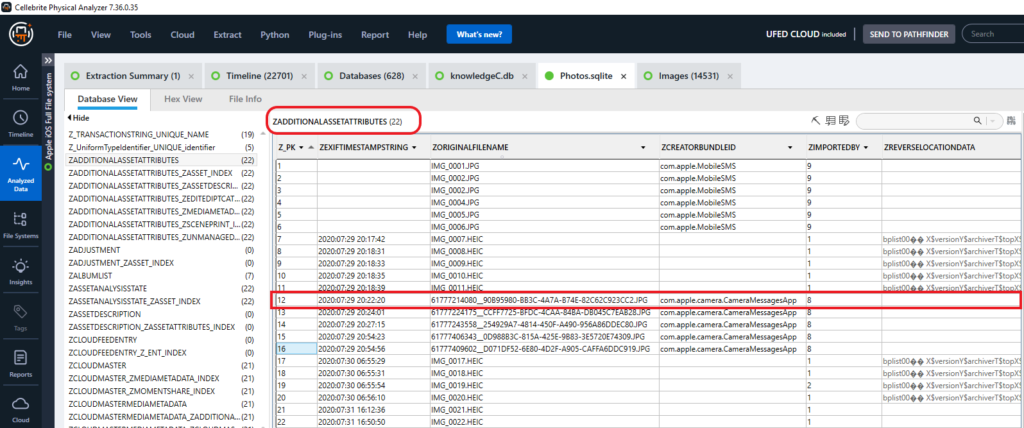
In Figure 7 we can see the ZADDITIONALASSETATTRIBUTES tableand some key information about IMG_0012.JPG.
Figure 7 – PA SQLite Viewer
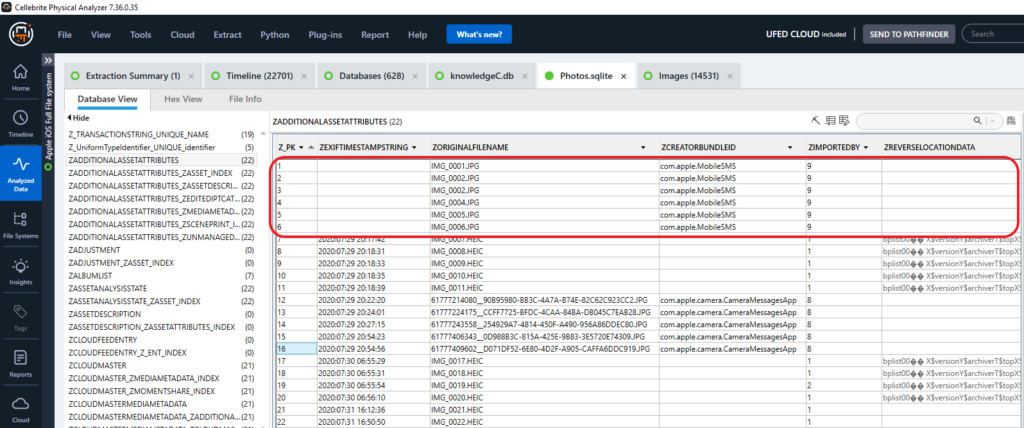
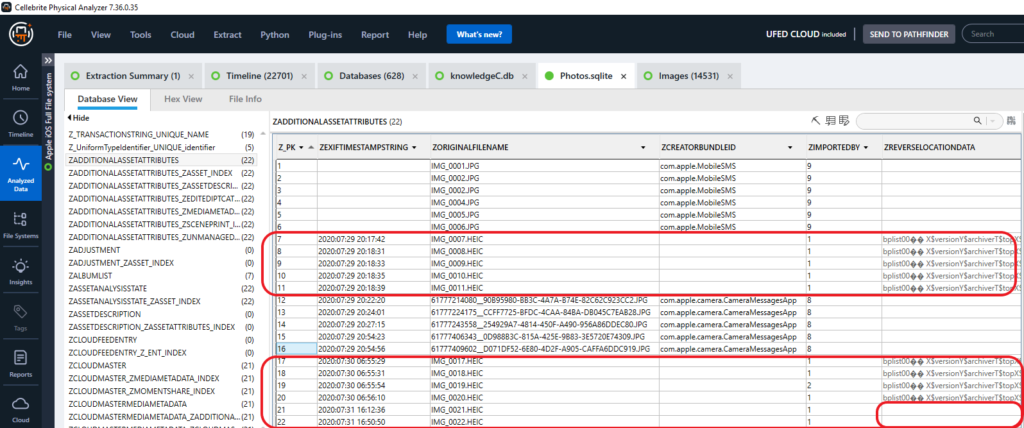
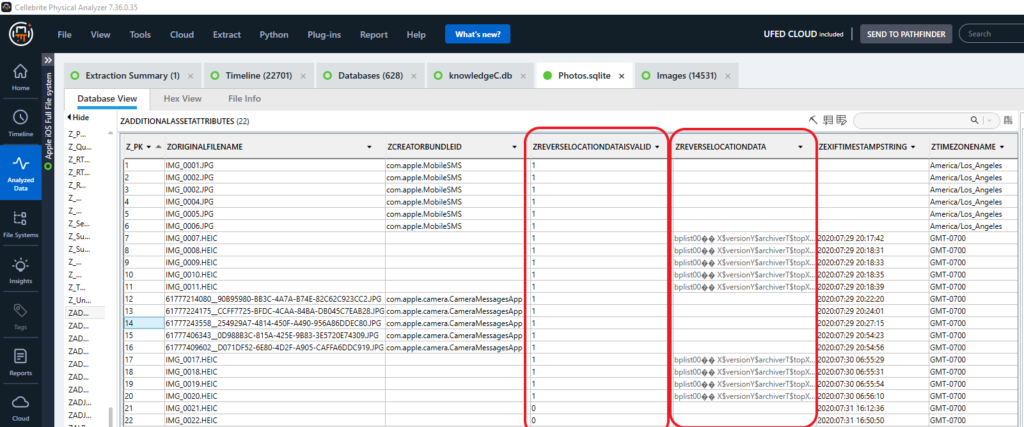
I wanted to take a minute and discuss some of the items I discovered while examining at the ZADDITIONALASSETATTRIBUTES table. First notice, that Z_PK entries 1-6 do not have a date in the ZEXIFTIMESTAMPSTRING column. These images were not captured with the test device. They were sent to the test device as MMS from an android device. These photos were then saved to the photos application via the native iOS messenger application. Notice the ZCREATORBUNDLEID indicates com.apple.MobileSMS. See Figure 7.1.
Figure 7.1 ZADDITIONALASSETATTRIBUTES table
Z_PK entries 7-11 and 17-22 were captured with the test device native camera application, launched from the springboard. Notice there isn’t an entry for ZCREATORBUNDLEID, but there is a value for ZIMPORTEDBY. Using the suspect data and the test data, I believe I’ve decoded some of the values. These are preliminary and require additional testing:
0 = Is related to .MOV files.
1 = Captured via native Back facing camera
2 = Captured via native Front facing camera
3 = Third Party Application – Snapchat
6 = Third Party Application – Facebook
8 = Captured via native Back facing Camera
9 = Saved from outside source (SMS, Safari)
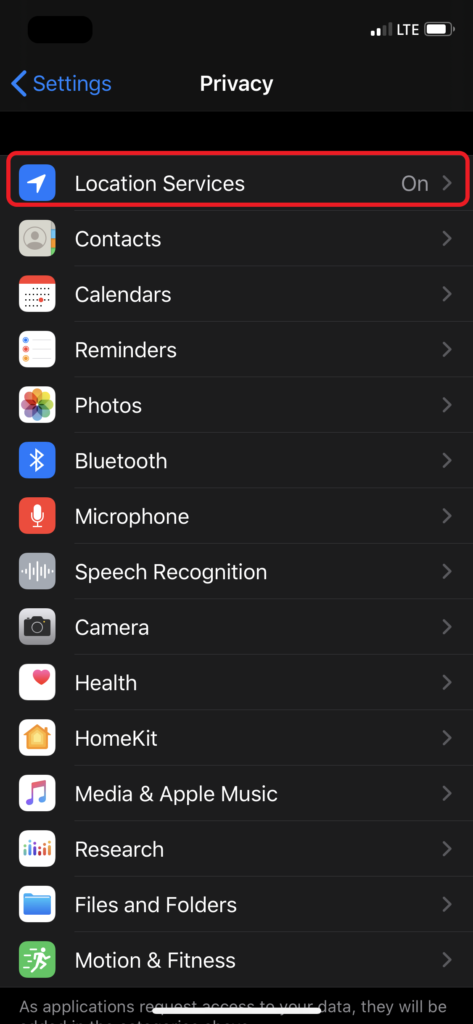
Notice there is a binary property list located in the ZREVERSELOCATIONDATA column for each one of these entries. Location services was active for the camera application when the photos were captured. Notice that entries 21 and 22 do not have binary property lists. These photos were captured minutes before the device data was extracted. I believe data did not have time to populate this field prior to the device being acquired. I will discuss the contents of this bplist later in this blog. See Figure 7.2 and Figure 7.3.
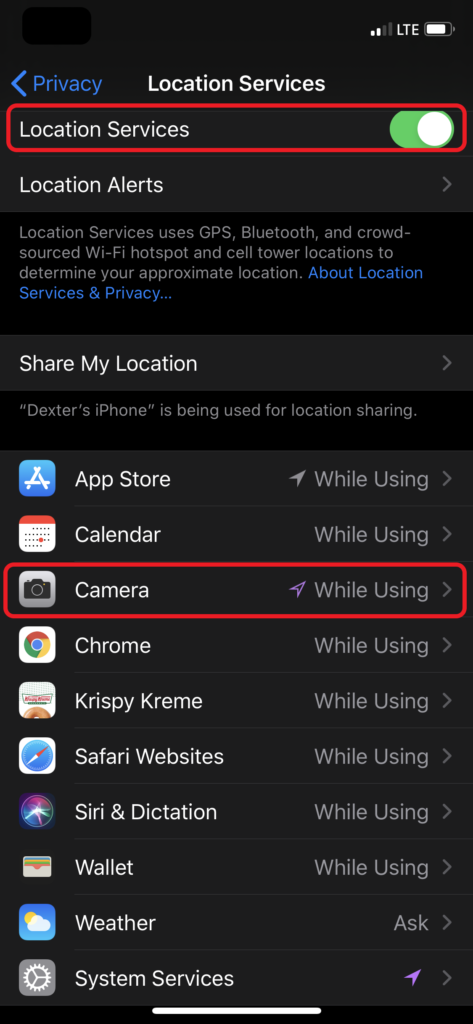
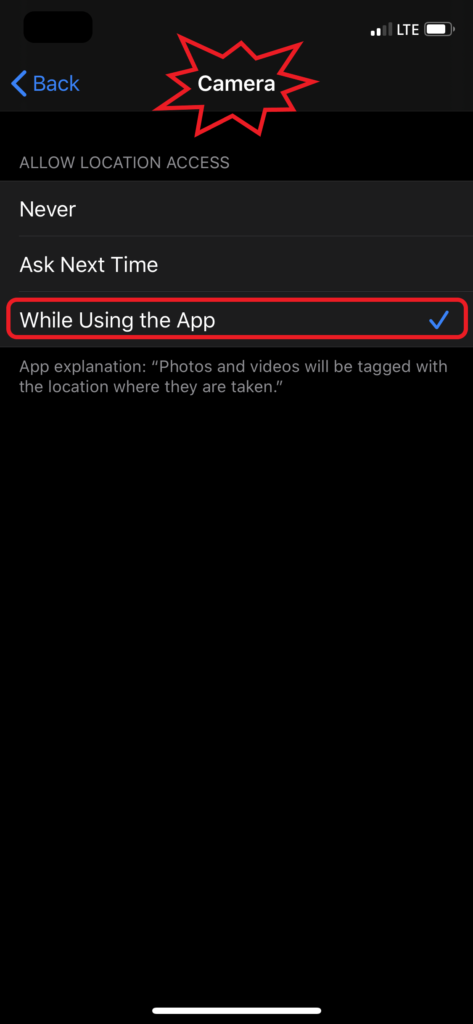
Figure 7.2, Figure 7.2.1 and Figure 7.2.2 Screenshots of test device location services settings
Figure 7.2
Figure 7.2.1
Figure 7.2.2
Figure 7.3 ZADDITIONALASSETATTRIBUTES table – PA
Z_PK entries 12-16 were captured via the Camera Application from within iOS Messenger. See Figure 7.4.
Something to notice here…ZORIGINALFILENAME column. All of the photos captured using the CameraMessagesApp have an UUID as the original file name. If you remember when I was discussing the Photos.sqlite – ZGENERICASSET table, these files are not listed in the ZFILENAME column. Another note, only the JPG files that were created are listed. Remember there were several files created as the result of me capturing a live photo of Dexter using the CameraMessagesApp:
Notice in the ZADDITIONALASSETATTRIBUTES table ZEXIFTIMESTAMPSSTRING column and the ZGENERICASSET table ZDATECREATED column the dates and time values are being stored in different formats. The values in the ZDATECREATED are natively stored as unix epoch and require conversion, but the values in ZEXIFTIMESTAMPSSTRING column are being stored according to the device time settings when the files were captured. In the test device, the date and time settings were set to auto and the time zone was set to Cupertino also known as Pacific Time (UTC -8 or -7…damn DST). There are other columns within the database that record the time zone setting at the time the files are created ZADDITIONALASSETATTRIBUTES table ZTIMEZONEOFFSET, ZINFERREDTIMEZONEOFFSET and ZTIMESONENAME columns.
Orientation:
In ZGENERICASSET table there is a column ZORIENTATION. Using the test device data, I determined 1 = Horizontal and 6 = Vertical. The photos I sent from an android to the test device had both horizontal and vertical original orientations. When they were saved to the test device, all of the photos were saved with a horizontal orientation. **Make sure to validate these are correct on each iOS version as they seem to change.
Locations:
In Figure 5 from Physical Analyzer, there is no location data being parsed for the photos that were captured using the CameraMessagesApp. After closer analysis, I could not locate any location data that was recorded within the EXIF data or database metadata for any of the items that were created with com.apple.camera.CameraMessagesApp application. During testing, location services was tuned on and the location was recorded for the files captured with the native camera (com.apple.camera), just not the files captured with com.apple.camera.CameraMessagesApp. Not sure if this is a security feature to conceal the location because the files are being sent via messenger. Note: I did a brief overview of the file at the hexadecimal level and did not find any location data. Additional analysis and research might be required to for a definitive conclusion.
In Figure 8 I have highlighted the columns related to the ZREVERSELOCATIONDATA column. Notice the ZREVERSELOCATIONDATAISVALID column and the values are 1 and 0. I believe based on the test data the values indicate 1 = If available has been populated and 0 = If available has not populated. This also appears to be related to ZGENERICASSET – ZANALYSISSTATEMODIFICATIONDATE. The items with a value of 0 in the ZREVERSELOCATIONDATAISVALID were also missing an Analysis State Modification Date. Additional testing and acquisitions are required for further analysis.
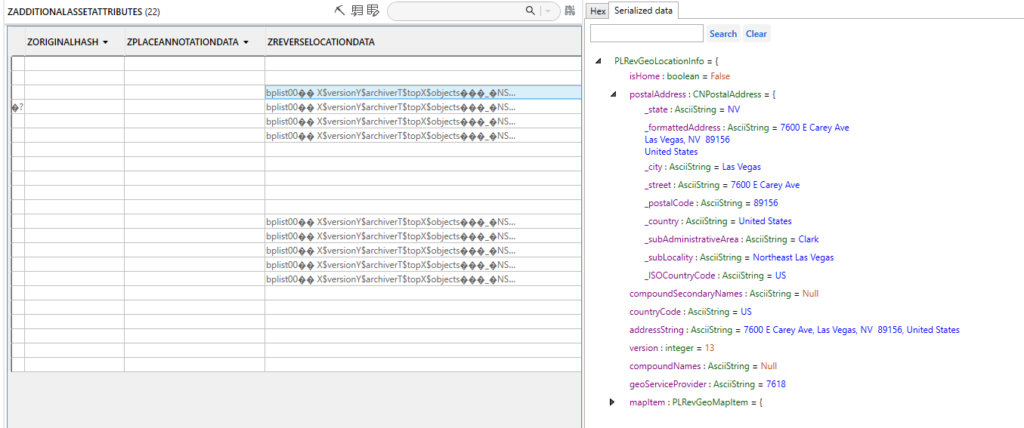
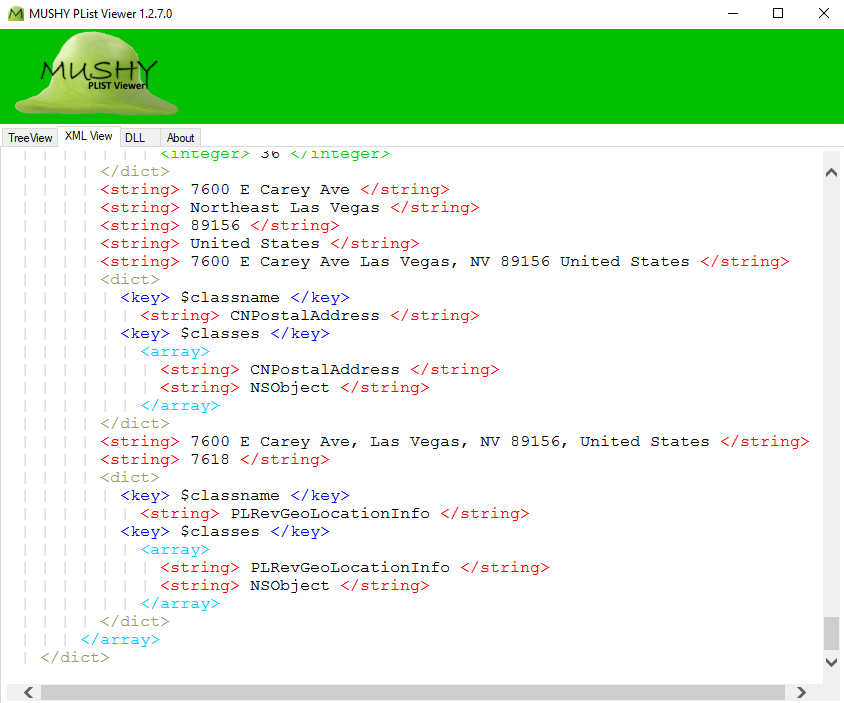
Let’s take a look at ZREVERSELOCATIONDATA bplist. This plist can be viewed from both Cellebrite PA SQLite Viewer and Magnet AXIOM SQLite Viewer, but like I stated earlier I used Ian Whiffins tool Mushy Plist Viewer. The locations discovered within this bplist were accurate as to where the device was located at the time the photos were captured. See Figure 8.1 and Figure 8.2.
Figure 8 we can see the ZADDITIONALASSETATTRIBUTES table – PAFigure 8.1 ZADDITIONALASSETATTRIBUTES table ZREVERSELOCATIONDATA column – PAFigure 8.2 ZREVERSELOCATIONDATA Plist in Mushy Plist Viewer
There is a significant amount of data being stored within the Photos.sqlite database and there has been recent research and publications about this database by researchers far more advanced than I. I would strongly encourage you to review the reference material list at the end of this blog for additional details and links to the other research.
I located a Magnet Custom Artifact for Photos.sqlite. The custom artifact was submitted by Costas Katsavounidis. The SQLite query was based on iOS 8 and up operating systems. The custom artifact can be located on Magnet Forensics Custom Artifact Exchange. After reviewing the query and its listed references, I learned of additional decoding for information being stored in the database. During the review, I learned lots of the information being decoded by Costas Katsavounidis’s query also applies to iOS 13. This information, along with the information from Jared Barnhart’s research has been included in the query I used and have shared. Please test and validate prior to using within your cases. I have also submitted the query to be added to the Magnet Custom Artifact Exchange. Here is a link to a google drive for the query and custom artifact:
Original file name & /private/var/mobile/Containers/Data/PluginKitPlugin/<UUID>/tmp/:
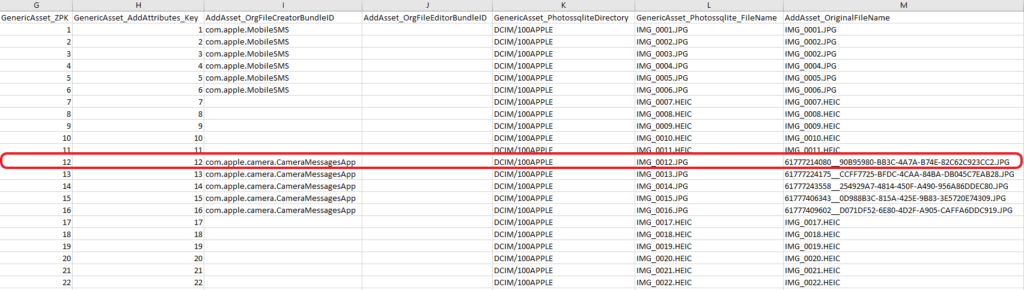
After running the SQLite script in Navicat (paid) and DB Browser (free), I exported the output into a CSV. For this portion, I will again focus on the live photo that was created at the start of this presentation (IMG_0012.JPG). Figure 9 is a portion of the output to show how the files are related:
Figure 9 SQLite script output
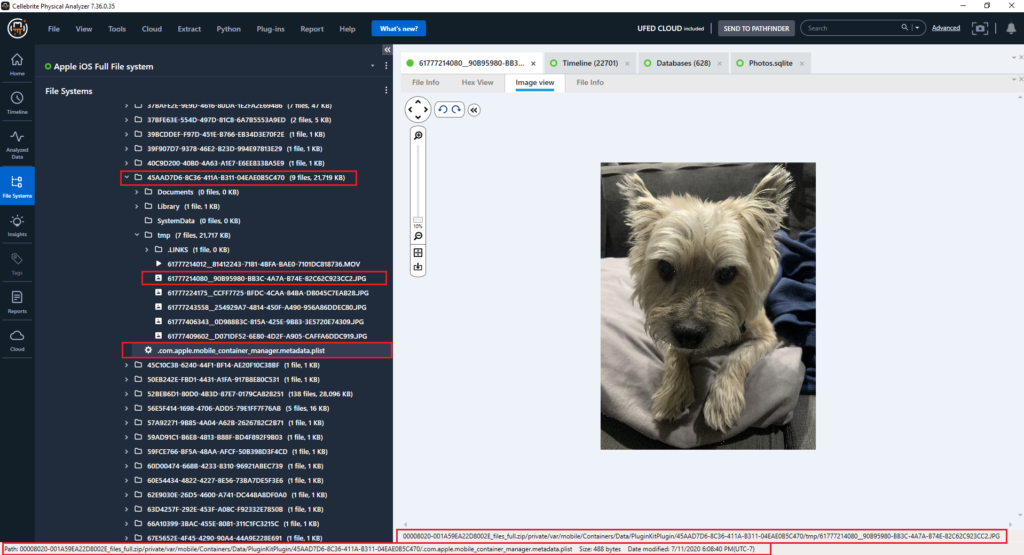
Notice the original file name for IMG_0012.JPG is 61777214080__90B95980-BB3C-4A7A-B74E-82C62C923CC2.JPG.
The file 61777214080__90B95980-BB3C-4A7A-B74E-82C62C923CC2.JPG is being stored at: /private/var/mobile/Containers/Data/PluginKitPlugin/45AAD7D6-8C36-411A-B311-04EAE0B5C470/tmp/
During the examination of the suspect device, some of the files created during this testing process were located, but the more obvious files that should have been present appeared to be deleted. What does that mean?
If this photo was attached to a message, sent to another device, and has not been deleted, there should be a file being stored in the device at: /private/var/mobile/Library/SMS/Attachments/. During testing, the files stored at in the /Containers/Data/PluginKitPlugin/<UUID>/temp and /SMS/Attachments/ locations had the same file name and hash.
In the suspect’s device, I located files being stored in the /private/var/mobile/Containers/Data/PluginKitPlugin/<UUID>/tmp/ file location. Notice that I removed the UUID and replaced it with <UUID>. In the suspect’s device the UUID for this temporary file location was different than the one listed in my test device. Here are the two file paths:
When this was discovered in the test device, I believed there had to be documentation which indicated a relationship between the temporary file location and an associated application. Figure 10 is a screenshot from Physical Analyzer that shows the temporary file and a view of the file system. Notice in the file system there is a plist in the root of the “45AAD7D6-8C36-411A-B311-04EAE0B5C470 folder.
Figure 10 – PA
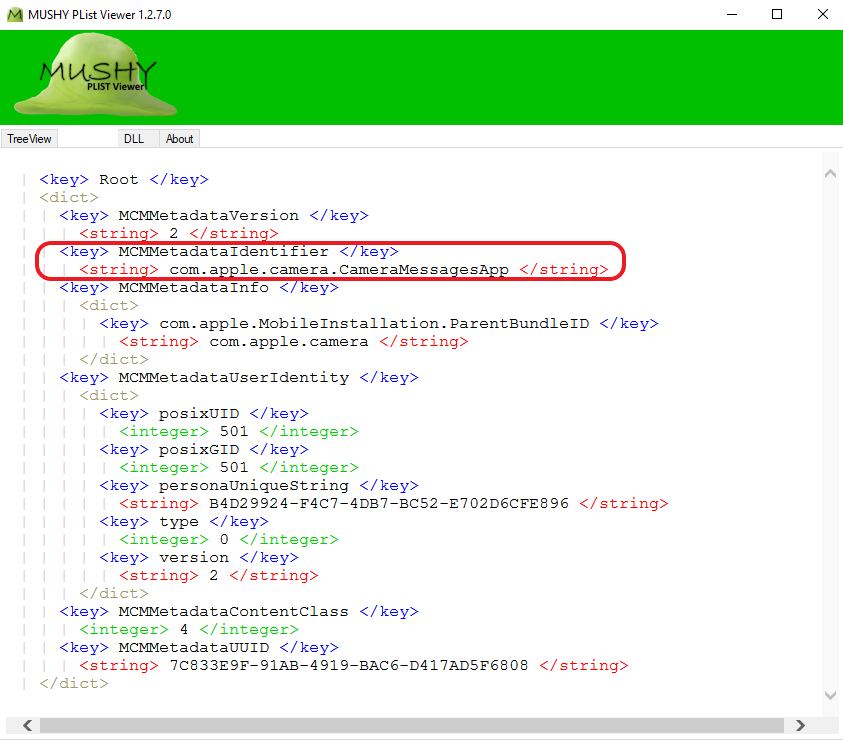
In Figure 11 I exported the plist (.com.apple.mobile_container_manager.metadata.plist) and when viewed with Mushy Plist Viewer, I discovered a “MCMMetadataIdentifier: AsciiString = com.apple.CameraMessagesApp.” This appears to be the application associated with the folder path UUID.
Figure 11 Mushy Plist Viewer
Based on the testing and what was observed in the suspect’s device, I came to the conclusion that if a file was stored in this file path, it was captured/created via the CameraMessagesApp.
Note: This was not the only application that was storing data at /private/var/mobile/Containers/Data/PluginKitPlugin. There are several other applications storing data at this location, to include SnapChat. I haven’t gone into detail about the other data contained here, but it would be very beneficial to analyze this file location to see if any evidence you are looking for could be found here.
Now that we have discussed what files are created during the process of capturing a photo within native iOS messenger, let’s take a look at what’s left behind after deleting one or more of those files.
Scenario #2 What happens when a photo is captured from within native iOS messenger, sent as an attachment message and the message that contained the attachment is later deleted from the conversation thread:
The summary for this scenario is that a photo (IMG_0014.JPG) was captured using Camera Messenger Application. When this photo was captured Live Photos was turned OFF. The photo was captured, attached to a message, and then sent to another device. Later, the sent message with the attachment was deleted from messenger.
On July 29, 2020 at 8:23 PM, via the test device, I disabled live photos.
At 8:26:46 PM, the messages application (com.apple.MobileSMS) was launched from the springboard. See Figure #12.
Figure 12
At 8:27:09 PM, the messages camera application (com.apple.camera.CameraMessagesApp) was launched. See Figure #13.
Figure 13
At 8:27:15 PM, A photo was captured of Dexter via com.apple.camera.CameraMessagesApp. The photo depicted Dexter laying down and his eyes could not be seen in the photo. The photo was attached to a message and sent to an android device. The message did NOT contain a text message.
Note: This message and the attachment was deleted prior to the device data extraction.
Several other photos were captured via com.apple.camera.CameraMessagesApp and sent via messages to an android device. In Figure 16, notice that all of the other photos sent during testing have the paperclip icon indicating they are attachments.
At 8:30:05 PM, the messages application, com.apple.MobileSMS, was closed.
At 8:57:08 PM, the messages application was launched.
At 8:58 PM, the message and attachment which contained the earlier discussed photo of Dexter was deleted from the message’s conversation thread.
At 9:00:04 PM, the photos application (com.apple.mobileslideshow) was launched and in focus.
At 9:01 PM, The “Recently Deleted” items were accessed and there were no photos being listed in this area. Upon examining the device data using Physical Analyzer, I located an entry for application usage. It indicated the com.apple.mobileslideshow was launched and used between 9:01:30 – 9:01:34 PM. It indicated an “Activity Type: com.apple.mobileslideshow.album.”
Note: I located data within the KnowledgeC database ZSTRUCTUREDMETADATA table that indicated there might be an expiration date for this data. The expiration date was listed in the column labeled: Z_DKAPPLICATIONACTIVITYMETADATAKEY_EXPIRATIONDATE. I have not tested this but wanted to mention it. See Figure 14.
Figure 14 – Timeline
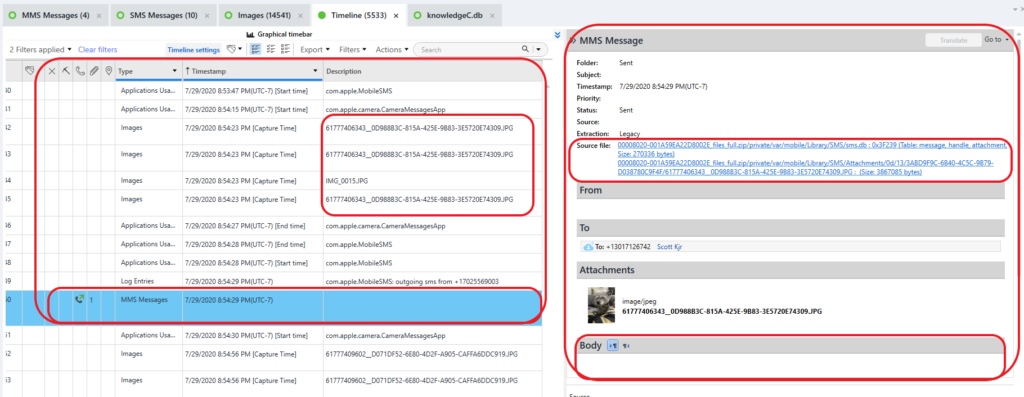
In Figure 15, we can see the timeline for when a photo was captured and a message with the attachment was sent. This is an example of what the data might look life if the message was not deleted. Notice the outgoing MMS Message entry.
Figure 15 – Timeline
Note: This message did not have a body of text sent with the attachment. After testing, I learned if a message is sent and the message has only had an attachment it will not have an entry for KnowledgeC ZSTREAMNAME – /app/intents messages. After additional testing, I learned this also applies if a message has both a body of text and an attachment. Additionally, there will be only one entry in the sms.db – message table for the body of text and the attachment.
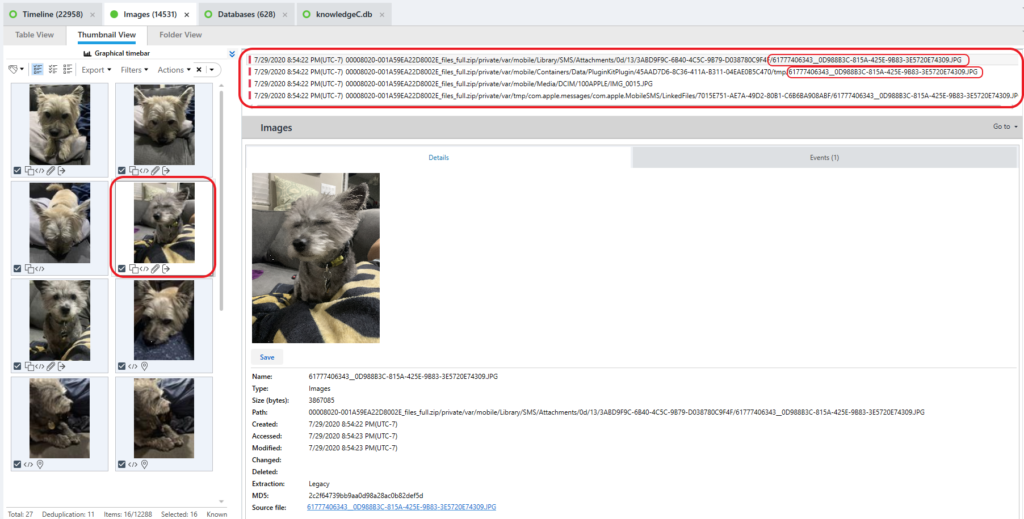
In Figure 16, we can see the files that were created when I captured the live photo. Notice, as previously stated, the files being stored in /SMS/Attachments and /Containers/Data/PluginKitPlugin locations have the same file name.
Figure 16 – Artifacts Media Merged
Let’s get back to the deleted file. In Figure 17 we can see the Artifact view – Media – Thumbnail view and notice the file missing from this process is the photo that would be stored at: /private/var/mobile/Library/SMS/Attachments/.
Figure 17 – Artifacts Media Merged
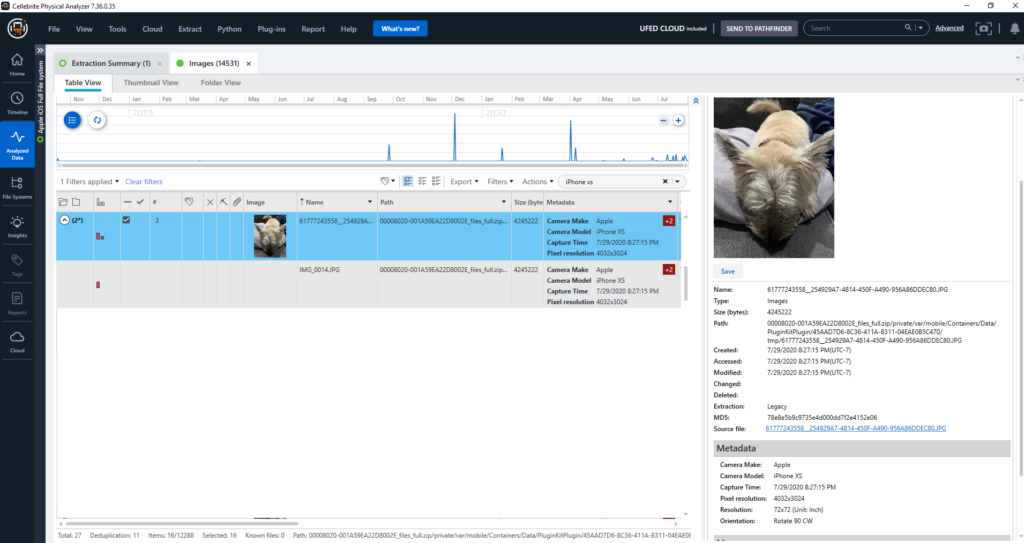
Figure 18 is another look at the same files but from within Artifacts – Media – Table view. Notice the bar column indicating only two files are being merged with the main record and neither of them are the attachment file.
Figure 18 – Artifacts Media – Table View Similar Items Merged
As mentioned in the previously, the files created and saved to /Containers/Data/PluginKitPlugin/<UUID>/tmp/ will be present regardless if the message and attachment is deleted.
Note: I am not sure how long these files will be present in the device. The files that were present in the first extraction (7/31/2020) were also present in the second extraction (9/5/2020).
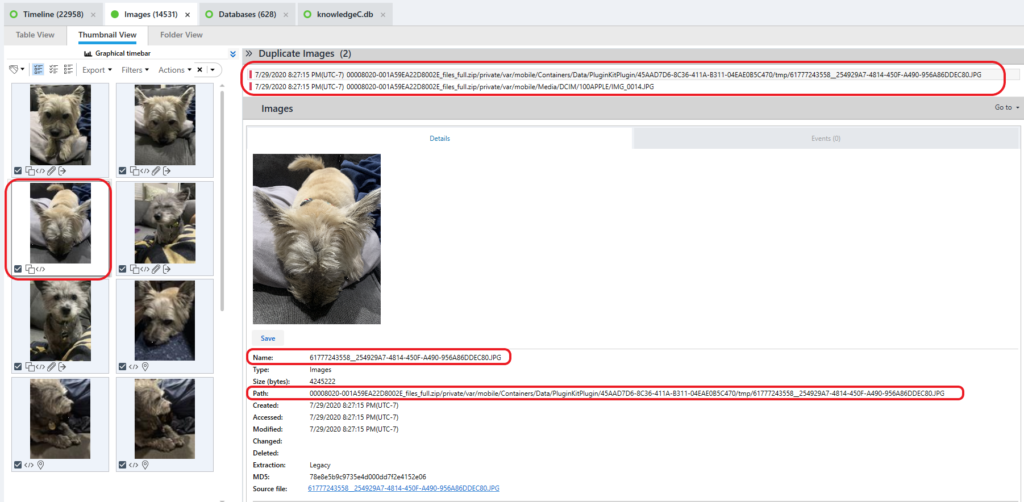
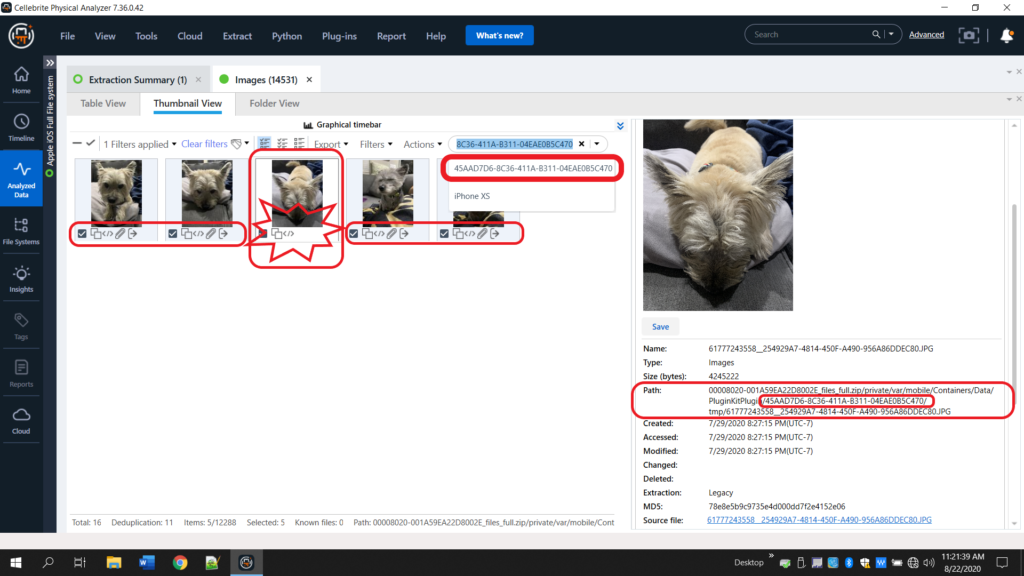
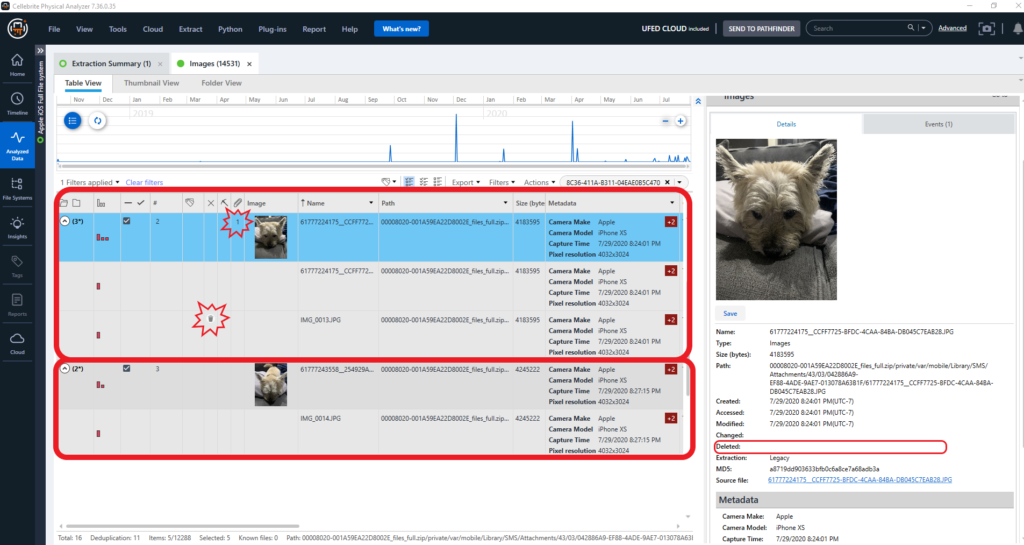
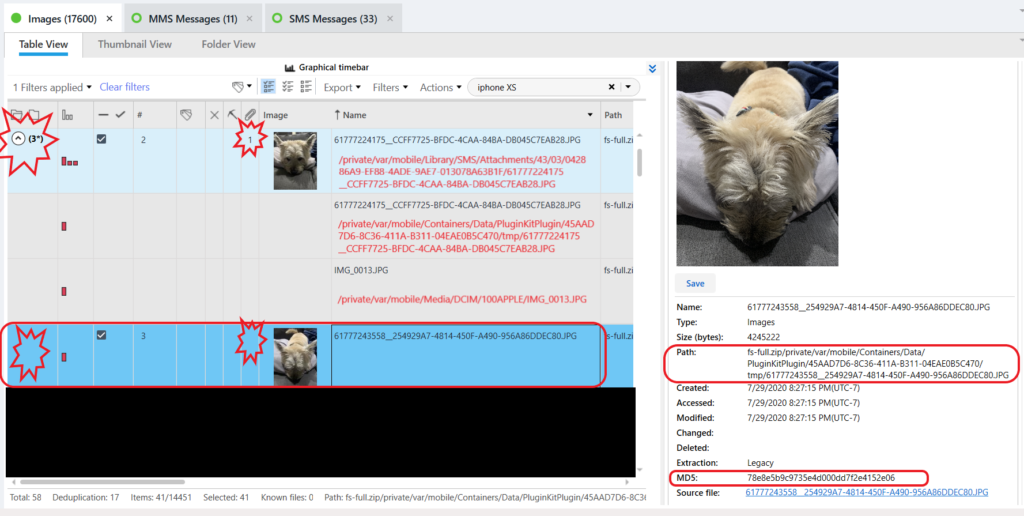
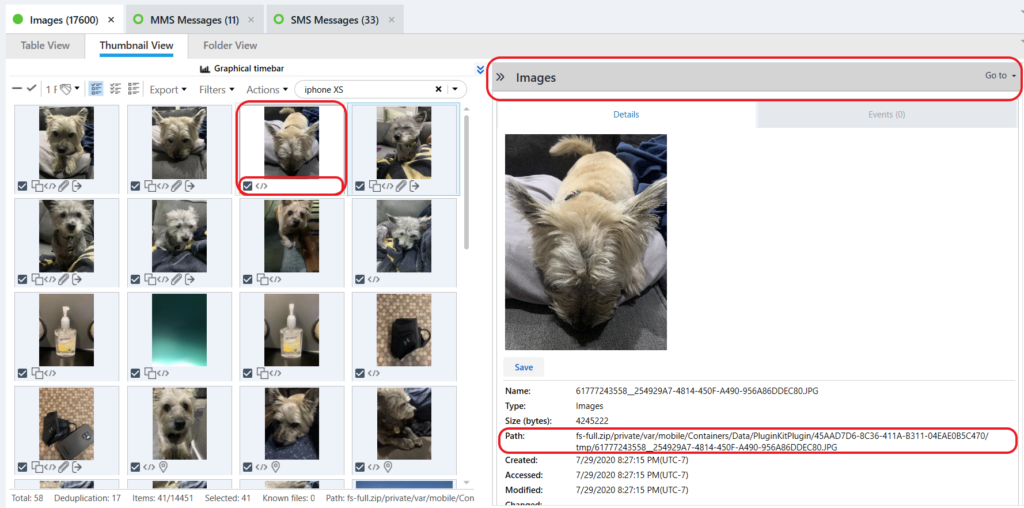
Let’s try and find all of the items that are stored in PluginKitPlugin location for that specific application (com.apple.camera.CameraMessagesApp). While in thumbnail view, I filtered the merged similar items based on the UUID “45AAD7D6-8C36-411A-B311-04EAE0B5C470.” See Figure 19.
Figure 19
In Figure 19, all of the duplicates and similar items are merged with each other, hence the layered squares icon on the bottom left of each photo. When examining the icon notifications within Physical Analyzer, I noticed two icons were missing from the highlighted photo. One was the outgoing message icon that indicates a message was sent and the other was the paperclip icon used to indicate attachment. These icons are missing because the message and the attachment were deleted from the message thread. When the message and the attachment were deleted, the associated file being stored at /private/var/mobile/Library/SMS/Attachments/ was deleted. I could not locate the file and it appeared to be removed from the device as soon as the message was deleted.
In Figure 19 the other files being displayed were created via the same method as the one highlighted.
NOTE: It was not this easy when I was examining the suspects device!! There were thousands of photos and I had no idea what I was looking for or what I was looking at once these were found.
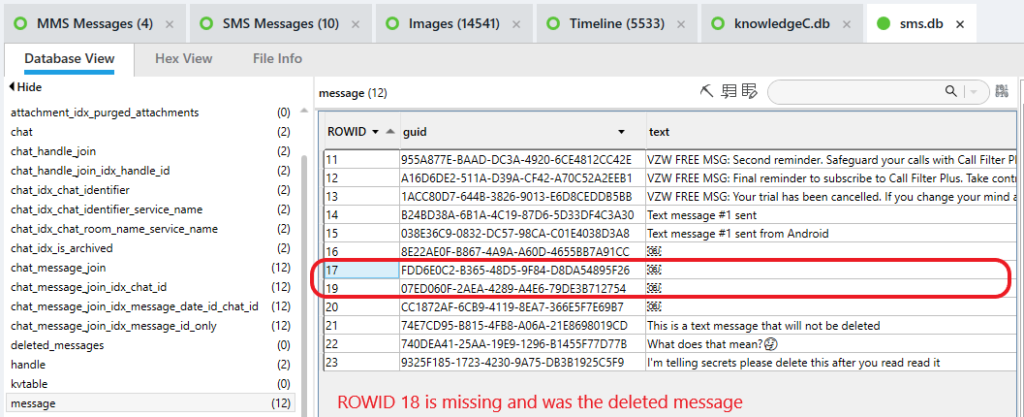
Figure 20 is a look into the sms.db – message table and notice there is a missing entry (ROWID 18) for the deleted message.
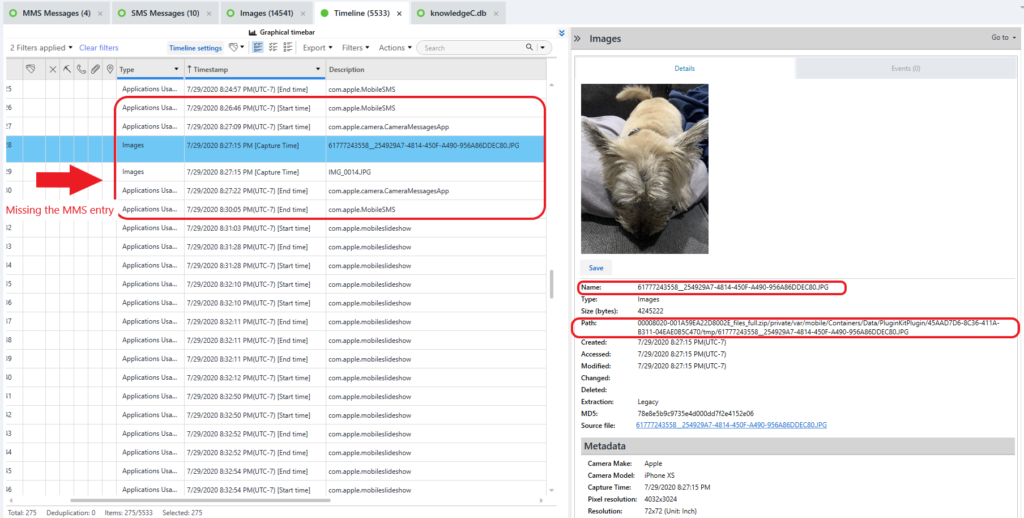
In Figure 21, we can see the timeline for the photo related to the deleted message and attachment. Notice the outgoing MMS entry is missing from the timeline. Notice the file is being stored in the PluginKitPlugin file location with the UUID file name. Additionally, there is a file being stored in the DCIM file location. We can also see the launched applications and applications in use before and after the photo was captured. This now serves as an indication to me that a message with an attachment might have been sent and then deleted.
Scenario #3 What happens when a photo is captured within native iOS messenger, sent as an attachment message and the photo sent as an attachment is later deleted from the Photos Application:
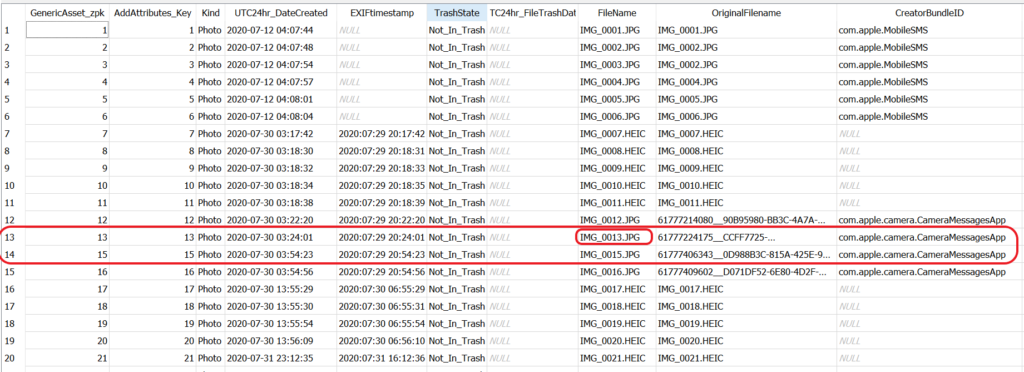
In Figure 22 we can see within PA a file, IMG_0013.JPG, that was captured using Camera Messenger Application. When this photo was captured Live Photos was turned OFF. The photo was captured, attached to a message and then sent to another device. At a later time, the photo being stored at /private/var/mobile/Media/DCIM/100APPLE was deleted. I was able to extract the device data before the photo was permanently deleted and removed from “Recently Deleted.” In this instance the files that remained on the test device were stored at:
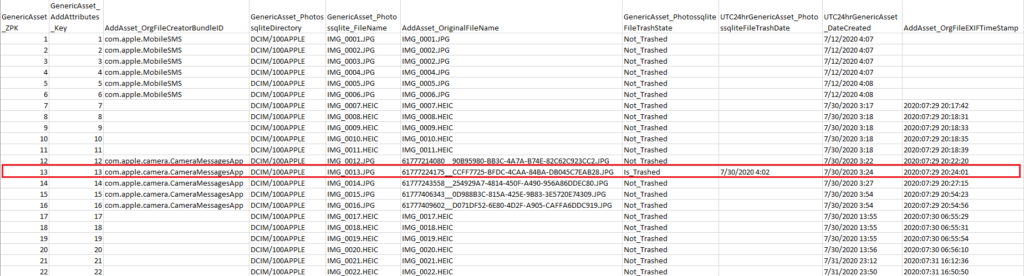
Let’s take a look at what this looks like in via the SQLite query that was written for the Photos.sqlite database. See Figure 23. Notice that there is a status column for File Trash State and another column File Trash Date. The highlighted file, IMG_0013.JPG, is indicating the file is in the trash and it provides a trash date or the date it was flagged as “recently deleted.” Additionally, notice that there isn’t any missing entries Z_PK 1-22.
Figure 23 SQlite Query
Additional Information about the deleted files:
I restored IMG_0013.JPG from being recently deleted/removed from the trash. The only noticeable change in Photos.sqlite was the file no longer had a Trash State and File Trash Date. I then deleted IMG_0014.JPG, which was then flagged as recently deleted / in the trash. I made this change because I wanted to test if the file stored at /Containers/Data/PluginKitPlugin/<UUID>/tmp/ would remain if all of the other associated files were deleted.
After the file was no longer listed in recently deleted, a second full file system extraction was completed. In Figure 24 and Figure 25 we can see after all of the other associated files were deleted, the file being stored at /private/var/mobile/Containers/Data/PluginKitPlugin/<UUID>/tmp/ still remained.
Figure 24 – PAFigure 25 – PA
Let’s take a look at what has changed in the Photos.sqlite via the query. See Figure 26. Notice Z_PK 14, the entire entry for IMG_0014.JPG has been deleted.
Figure 26
Summary:
During this blog we discussed some additional file locations that should be analyzed if you have an iOS Full File System (FFS) extraction.
You should check the Photos.sqlite database and review the original file names. This could indicate the existence of additional files to analyze and if a FFS extraction would be beneficial to your investigation.
Additionally, you should check Photos.sqlite creator bundle ID which could indicate which application was being used to capture/create the photo. Using this information, you can locate the appropriate /private/var/mobile/Containers/Data/PluginKitPlugin/<UUID>/tmp file location that can be examined for additional files.
The /private/var/mobile/Containers/Data/PluginKitPlugin/<UUID>/tmp file location can hold vital data that might not be present in other types of extractions. It can also contain files that were deleted by the user and they may not exist elsewhere on the device.
I could not have completed this research without help from the other outstanding and knowledgeable professionals who have been doing this type of work long before I even acquired my first cell phone. I would like to take this time to say thanks to everyone who shares their experiences with the community and list some resources that I have used during my forensic examinations and to prepare this blog. I hope it can help you as much as it helped me.
Thanks, for going on this journey with me and please feel free to contact me if you have any questions about this research blog. As always, please test and validate your findings and take time to share!
First, thank you to everyone for humoring me and submitting jokes. If we cannot laugh at ourselves, we are way too serious. Here are some of my favorites from the DFIR Summit. On a positive note – always try to find the humor in the situation. Especially with all that 2020 has thrown our way. Laugh and smile. 🙂
*Due to covid-19 all TCP applications are being converted to UDP to avoid Handshakes..!!
*Bill Gates walked into an APPLE store and farted but it was APPLE’S fault that they had no WINDOWS
*Do you know why I like UDP jokes?” “I don’t care if you get it or not.
*Why doesn’t Tigger have any friends? Because he plays with Pooh!
*What concert costs just 45 cents? 50 Cent featuring Nickelback!
*This graveyard looks overcrowded. People must be dying to get in.
*On a Friday, its a five minute walk from my house to the bar. It’s a 35 minute walk from the bar to my house. The difference is staggering.
*How can you find a blind man on a nude beach” … come on… it’s not that hard.
*What do dentists call their x-rays? Tooth pics
*Why did the first restaurant on the moon go out of business? It had no atmosphere
*Why do ducks have feathers? To cover their butt quacks!
*My friend said he didn’t understand what cloning was. I said that makes two of us.
*A guy walks into a psychiatrist office fully naked and wrapped in saran wrap from head to toe. The Psychiatrist says I can clearly see you’re nuts.
*Where did the software developer go?! I don’t know, he ransomware!
*I once started a band. We were called 999MB. Unfortunately, we broke up because we couldn’t get a gig.
*When does a joke become a ‘dad’ joke? When it becomes apparent.
*Which computer has the best voice? A Dell.
*How do astronomers organize a party? They planet
*I always knock on the fridge door before opening it. I do it just in case a salad is dressing!
*At a job interview I continued filling my glass of water until it overflowed. “Nervous?” asked the interviewer. “No, I always give 110%”
*Why do milking stools have 3 legs? Because the cow has the udder
*Want to hear a construction joke? I am still working on it!
*Did you hear about the guy who invented the knock-knock joke? He won the ‘no-bell’ prize.
*what made the tomato red/blush? it saw the salad dressing
*a pirate walks into a bar. the bartender notices a GIANT ship steering wheel coming out of his pants. the bar tender asks “hey man, whats with the giant wheel?” the pirate answers (in pirate voice): “Yarrr, its driving me nuts”
*I pulled a muscle digging for gold… Just a miner injury
*I would not buy anything that’s Velcro, it’s a total rip off
*Why did Adele cross the road? To say hello from the other side
*What happens when you go to the bathroom in France? European
*One snowman turns to another snowman and says… “Is it just me, or do you smell carrots too?”
*Where did the military hide their armies? In their sleevies
*What do computers and air conditioners have in common? They both become useless when you open windows.
*There was a gorilla in my garden this morning. He stole my gnomes, my gate, my lawnmower. I didn’t want to say anything in case he took offense.
*Does anyone have any good elevator jokes? They’re just good on so many levels!
*I applied to be a doorman but didn’t get the job due to lack of experience. That surprised me, I thought it was an entry level position.
*I tell dad jokes, but I don’t have kids. Does this make me a faux pa?
*How many developers does it take to change a light bulb? None it’s a hardware problem.
*What are you called if you see a crime at an Apple Store? – An iWitness
*Why should you never trust stairs? They’re always up to something.
*What kind of shorts do clouds wear? Thunderpants
*Why did the duck get arrested? For selling quack
*How much do pirate earrings cost? A buck an ear.
*Have you heard the steak pun? It’s a rare medium well done.
*what did the fish say when he hit the wall…dam
*Why don’t ants get sick? Because they have little antibodies
*What do you call an elephant that doesn’t matter? An irrelephant.
*A chicken coup only has two doors. If it had four, it would be a chicken sedan
*I hate when my wife gets mad at me for being lazy. It’s not like I did anything
*What type of shoes do frogs wear? Open toad
*Why didn’t the invisible man take the job? He couldn’t see himself doing it!
*I take an extra pair of pants when I golf, just in case I get a HOLE IN ONE!
*I got fired from my job at an orange juice factory, I couldn’t concentrate properly
*My wife just completed a 40 week body building program this morning It’s a girl and weighs 7lbs 12 oz
*Researchers have discovered a pod of whales playing instruments. It’s an orca-stra
*bought a cute dog a few days ago. Every time when the doorbell rings he goes to the corner….. it’s a boxer
*Don’t worry if you miss a gym session. Everything will work out.
*What do you call it when Batman skips church? Christian Bale
vWhat do you call a cow that just gave birth? Decaffeinated
*What didn’t the toilet paper cross the road? It was stuck in a crack
*What do sprinters eat before a race? Nothing. They fast
*Why are spiders so smart? They can find everything on the web.
*Why did the cryptographer send back his breakfast? Because the hash wasn’t salted.
*How do you make a tissue dance? You put a lil boogie in it
*Why do cows wear bells? Because their horns don’t work.
*How does a computer get drunk? A. It takes screenshots.
*What do you call it when you have your mom’s mom on speed dial? A. Instagram.
*A man was talking with a psychiatrist saying, “I’m a teepee. I’m a wigwam. I’m a teepee. I’m a wigwam.” The psychiatrist said, “Relax man, you’re two tents.
*why can’t you run while camping? You can only ran because it’s past tents
*Why do cows have hooves and not feet? They lactose
*I went camping, it was intents
*Why can’t a nose by 12 inches long? Because then it would be a foot
*I changed all my passwords to Kenny. Now I have all Kenny Loggins
*How do you make holy water? You boil the hell out of it
*It’s hard to explain puns to kleptomaniacs because they always take things literally
*What is the only car that can safely drive over a speedbump at 70mph?A rental car
*How do you get a squirrel to like you? Act like a nut
*Knock, knock Who’s there? Little ol’ lady. Little ol’ lady who? I didn’t know you knew how to yodel.
Working from home, social-distancing, travel restrictions, and homeschooling all related to COVID-19 have changed our lives. The new normal is not always fun, to be honest. This is why “Life Has No Ctrl+Alt+Del” was created. I wanted a forum where we could casually get together, but also include a way for us to stay engaged.
This is an online meetup/show that happens several days a week to enable you to listen, see and share with others in this community. It is not a formal presentation, sales pitch or place to bore you. It’s an open forum where anyone is welcome to speak! This meetup is supported by Cellebrite, but it’s not a Cellebrite centric event – it’s a DFIR event. Curious, join for at least one!
When: March 30th week – every weekday; after that M, W, F weekly
Host: Heather Mahalik (may have subs, if needed)
Guest Stars: Announced Weekly – Each star will decide if they want it to be recorded – all recordings will be shared!
Hashtag: #DFIRatHome
When you think of this show, I want you to imagine having lunch with friends when a cool conversation spikes. It’s literally that relaxed! I hope to see you on the show soon.
I have been meaning to get this out for a bit, so here it is. Something has been keeping me busy – you know kids, work, SANS and being all in the same place together 24 hours a day. 🙂
The forensic 4Cast awards by Lee Whitfield have really become quite a “thing” for many. It’s such a great idea and Lee, well done. You , my friend, give people and companies some to strive toward and I love it.
Let’s get right to it. Opinions are my own and for that if you do not like them, no need to worry. Everyone has their own opinions and some simply want recommendations. Do I work for a vendor – yes. Do I sell training via SANS – yes. Do I have my own brain – YES!
I give a brief snippet for some, but not all. If you want to know who I really nominated, ask me. 🙂
DFIR Commercial Tool of the Year
UFED Ultimate
Elcomsoft Cloud Tools
Oxygen Forensic Detective
Magnet AXIOM
DFIR Non-commercial Tool of the Year
iLEAPP
KAPE
Sysdiagnose scripts – Mattia
Epifani, Adrian Leong, Heather Mahalik
Sysdiagnose research – Mattia Epifani, Adrian Leong, Heather Mahalik
Axi0mX – checkm8 – need I say more?
DFIR Newcomer of the Year
Geraldine
Blay – She lives for DFIR, tests for everyone and is starting to blog
Josh
Hickman – Blogging, providing public images and staying on top of forensics
DFIR Mentor of the Year
Alexis Brignoni – community contributions and work
Scott Lorenz – EDL support and guidance
DFIR Resource of the Year
Cellebrite Ask The Expert (Tip Tues, ATE series) – Provides snippets of information to make you smarter each week.
Heather Mahalik – Cellebrite 😉 – Yes I am laughing, but again with the busting my butt thing to spread knowledge
Digital Forensics Discord- A. Rathbun created this and it rocks
DFIR Team of the Year
Cellebrite – I love my teammates. My SANS teammates wonder who I love more.
SANS – See item 1
Magnet – I have tons of friends at Magnet and they have good morale
Digital Forensic Investigator of the Year
Mattia Epifani – He researches, blogs, teaches and PRODUCES! This man never sleeps.
Shafik Punja – Continuous support to detecting and reporting bugs to vendors to make DF better for everyone.
Ian Wiffin – Thinking outside of the box and developing tools to fill the gaps that commercial tools have yet to address.
So, some shameless plugs in there, but why not – my opinions right? Some categories were harder than others to pick just one, but you have to go with your guy. You will notice that I didn’t nominate Eric Zimmerman (my good friend) for Investigator of the Year. He is the Meryl Streep of the 4Cast! Time for the Hall of Fame Eric. 😉
For those of you who don’t have time to read for585.com/ios13, here is a mini summary for you.
First – If the backup is NOT encrypted you will not get:
Maps
Calls
Safari
Health
Keychain
Wallet
Apple has upped their game on protection it seems, so you need to encrypt to extract. I used iTunes in my full blog and just testing PA 7.24 Method 1 with encryption and Method 2 is in progress. Worked like a charm and I got what I expected. You lock it up, or you don’t get much. Bottom line. Jessica Hyde wrote a post on protecting yourself from an accidental sync if using iTunes to create a backup: https://www.magnetforensics.com/blog/three-newer-things-that-may-surprise-you-about-ios-forensics/amp/ If you are using PA, you are protected from this.
While you are going to be forced to read the long blog for the juicy details, here are the file paths you need to be aware of for iOS 13:
The biggest change other than encryption seems to be the use of protobufs, which Sarah Edwards is working on a blog to discuss, settings and how that may determine what is saved to device vs. cloud, Safari artifact storage, and encryption. Please read the full blog for all of the good details and stay tuned for my iOS series, webinars, etc.
Stay tuned for the release of PA 7.24 next week and also for #TipTues on Twitter where I will provide something useful, I hope. 😉